Appearance
Prepare Capital or GTS work
Billing → Capital & GTS
To prepare Capital work you need the Billing preparer role and a role that can read billing records, such as Billing reviewer. Reserving an invoice candidate needs Billing preparer and QuickBooks exporter, which gives the invoice number.
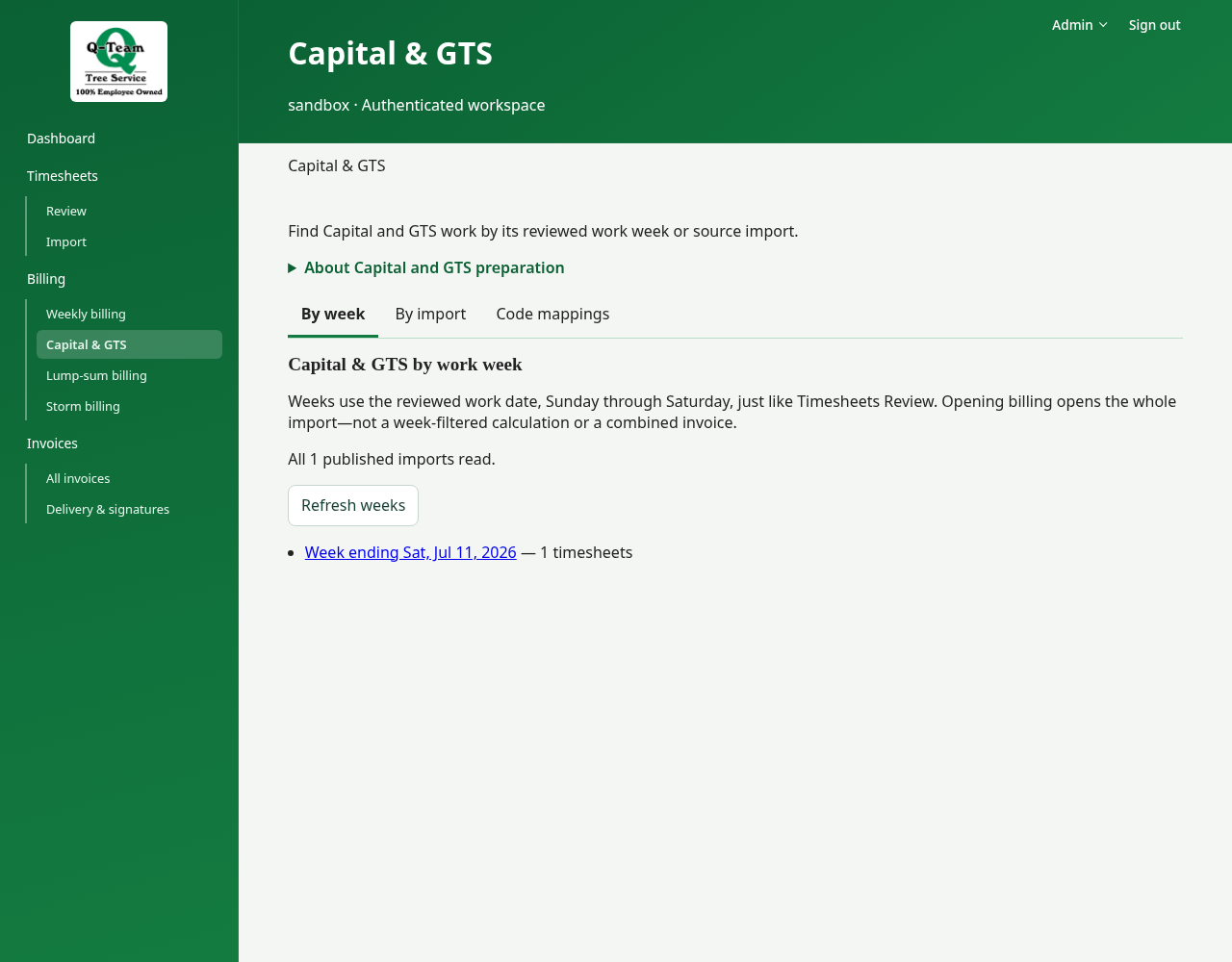
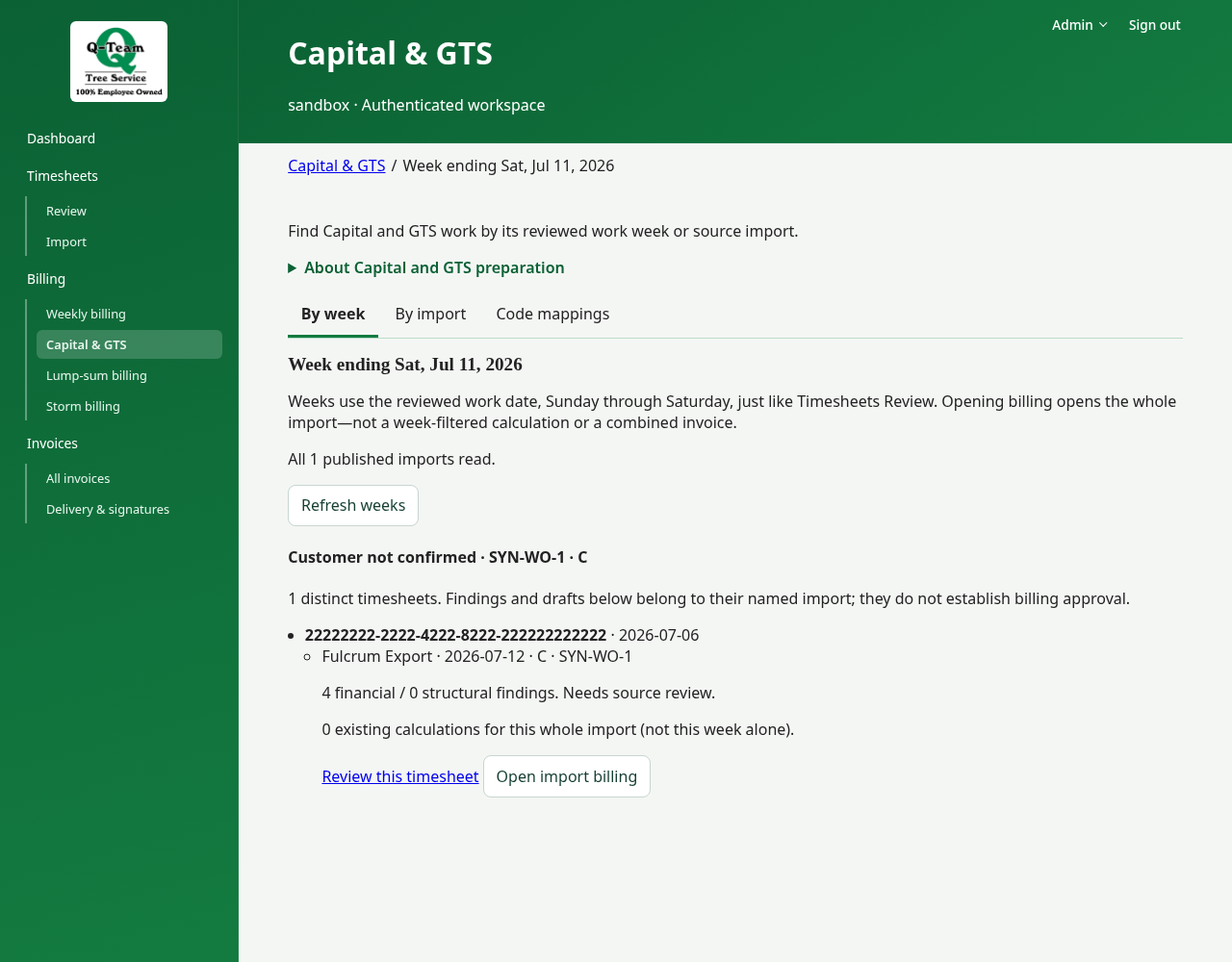
The default By week view groups reviewed Capital/GTS timesheets by their Sunday–Saturday work week, customer scope and work order. Choose a week to see its source findings and the existing calculations for each import. Needs a work date contains missing or conflicting dates; unclassified work links back to Timesheets Review rather than guessing a billing category.
Open import billing opens the existing whole-import flow. The selected week remains in the breadcrumb, but does not filter a calculation, combine imports or split invoices. Review this timesheet opens the corresponding source review for corrections. Repeated captures remain visible, and a partial read is explicitly marked incomplete.
Customer labels use the reviewed CMP scope; otherwise the customer is shown as unconfirmed, not inferred from a work-order name. Calculation counts are for the whole import, not proof that this week's work has already been billed.
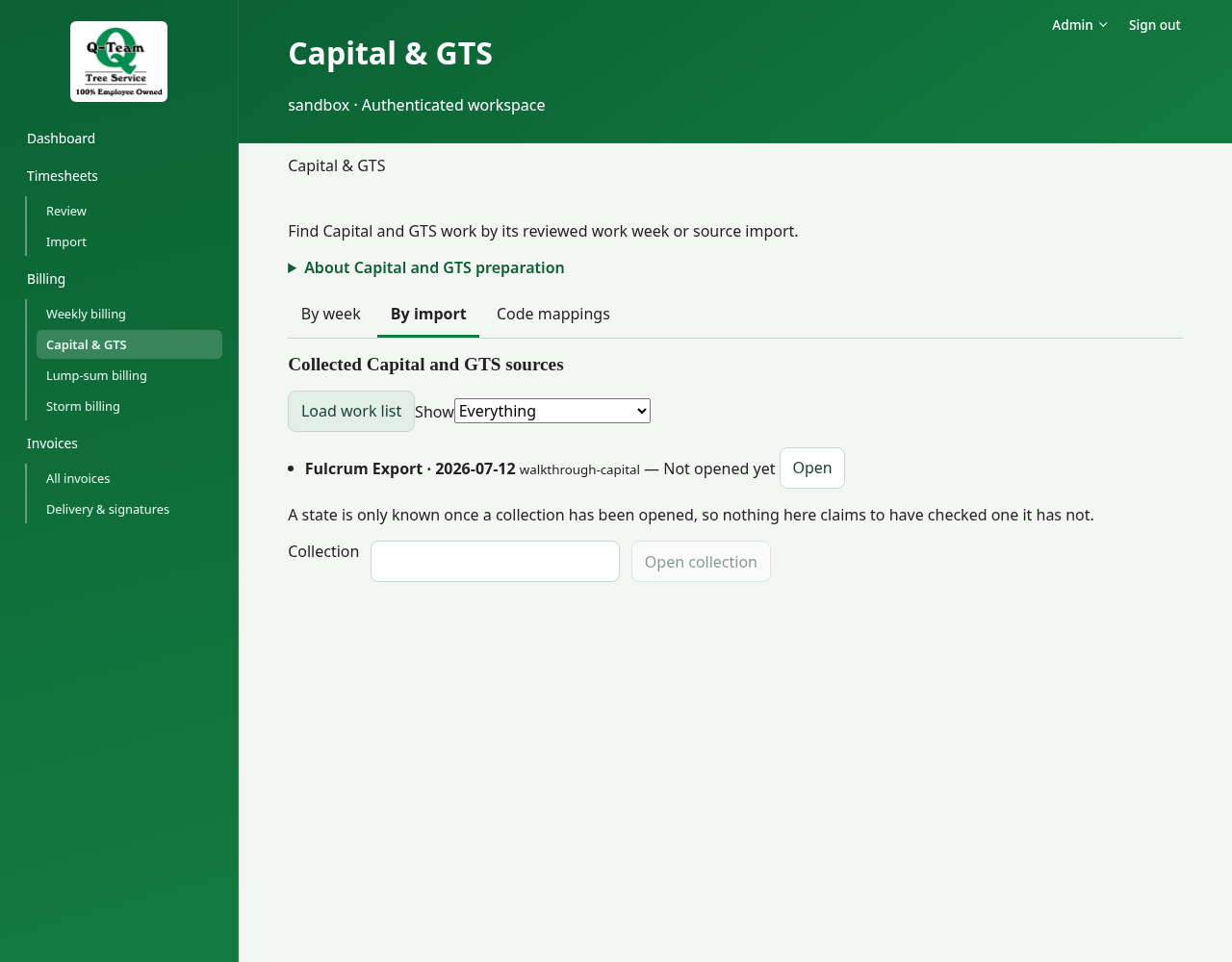
Use By import to browse the original collection list. Use Billing work for a selected collection and Code mappings for reusable timesheet-code rules. Code mappings are a separate task, not a required edit on every collection.
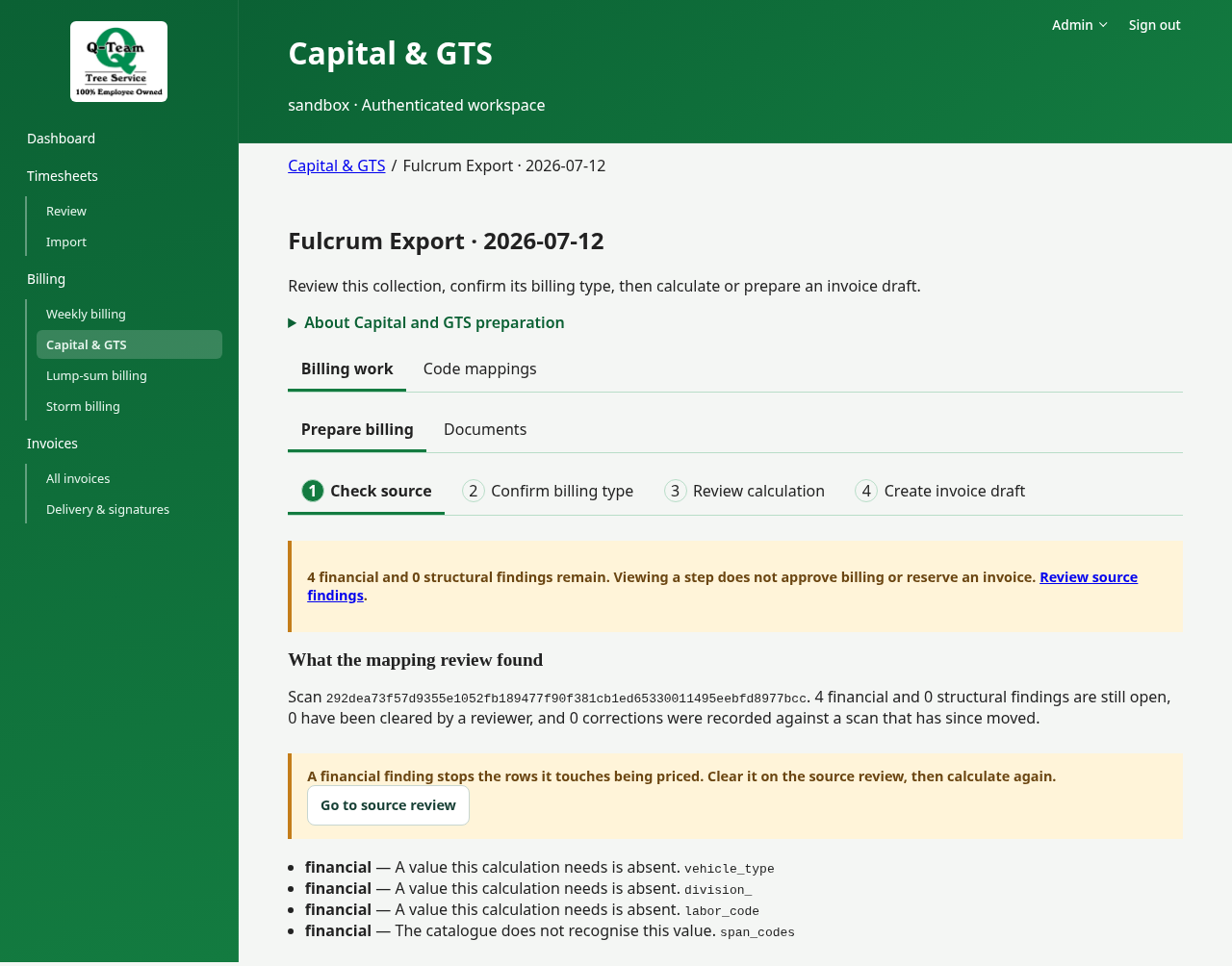
Preparation follows Check source → Confirm billing type → Review calculation → Create invoice draft. You can revisit a step without losing entered authorization details; selecting a step does not approve billing or create an invoice. Calculation previews and reservations remain separate actions.
An opened calculation has Charges | Supporting records | Documents views. Use Documents to prepare its download; the collection's Documents view lists stored packages. Blocking findings and uncertain-save retry notices remain visible when changing views.
1. Check the source and billing method
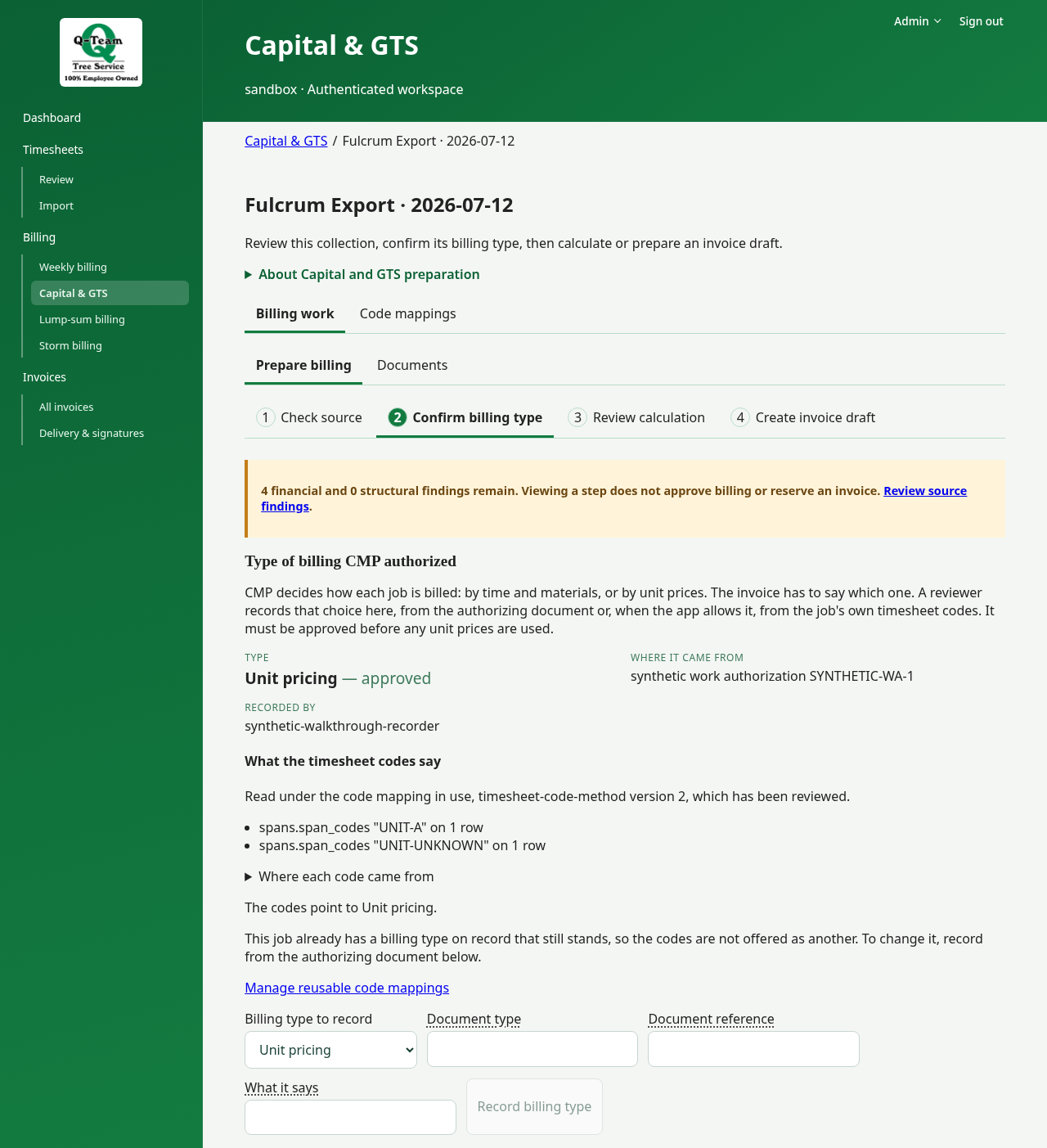
From By import, under Collected Capital and GTS sources, choose Load work list, then Open beside your collection. Read What the mapping review found. Fix wrong source values in Timesheets → Review.
Check Type of billing CMP authorized. Use the approved method and its proof. A Capital code alone does not tell you which pricing method is allowed.
2. Reserve one draft
Under Reserve an invoice candidate:
- Choose Prepare source inputs and read its result.
- Select a Source timesheet.
- Choose Reserve candidate.
- Check its source, invoice number, Draft total and number of priced lines.
If preparation or a candidate says a person was added in review, billing cannot include them yet. The addition must be withdrawn in Timesheets → Review first; ask Ben or Bill.
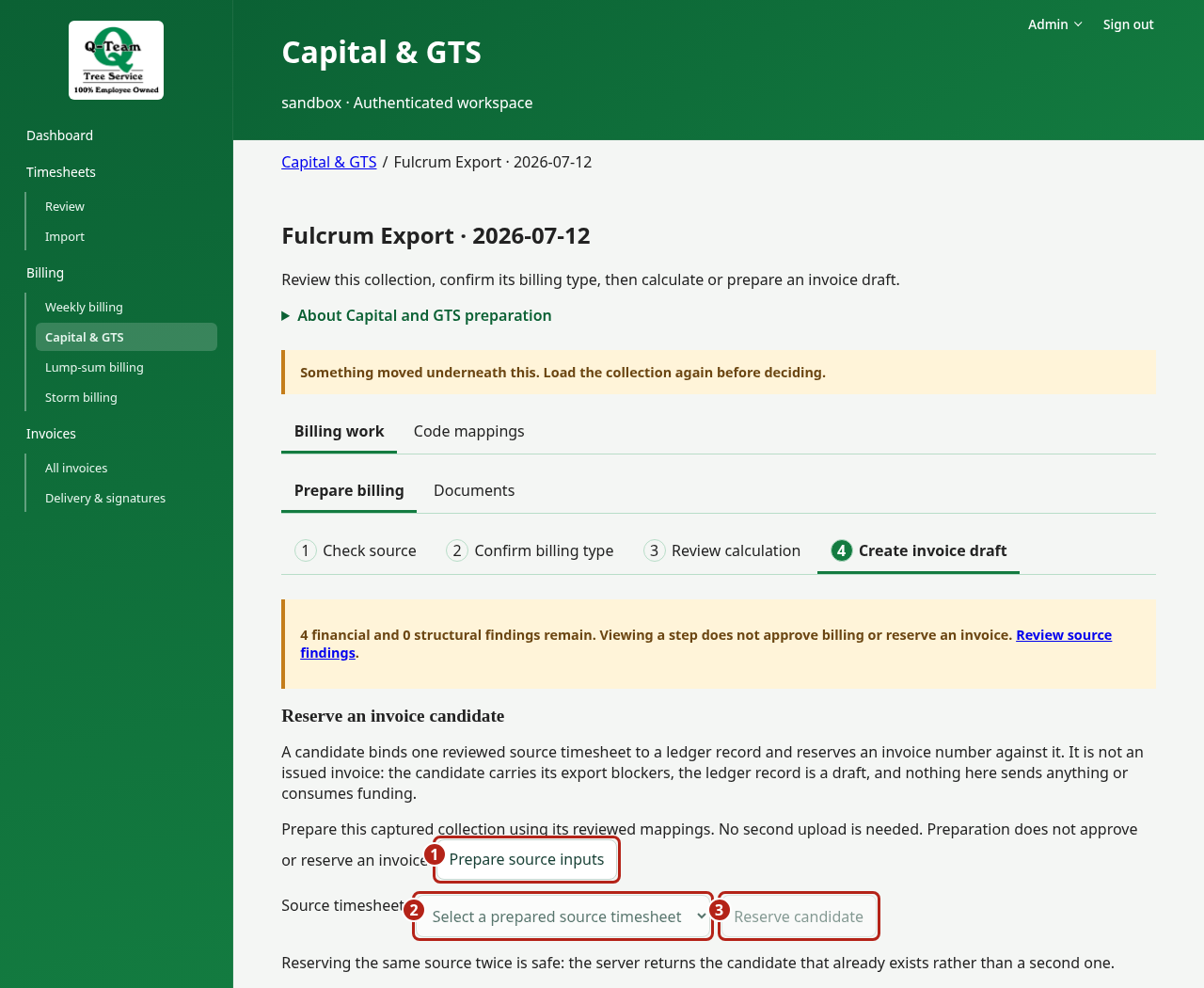
A candidate is a proposed invoice tied to a source timesheet. Reserving it gives the draft a number; it does not issue or send it. Any listed export gates remain closed until their requirements are met.
If the same source is already reserved, the app returns that draft. For the first run, leave Reserve several candidates for later.
3. Check the math
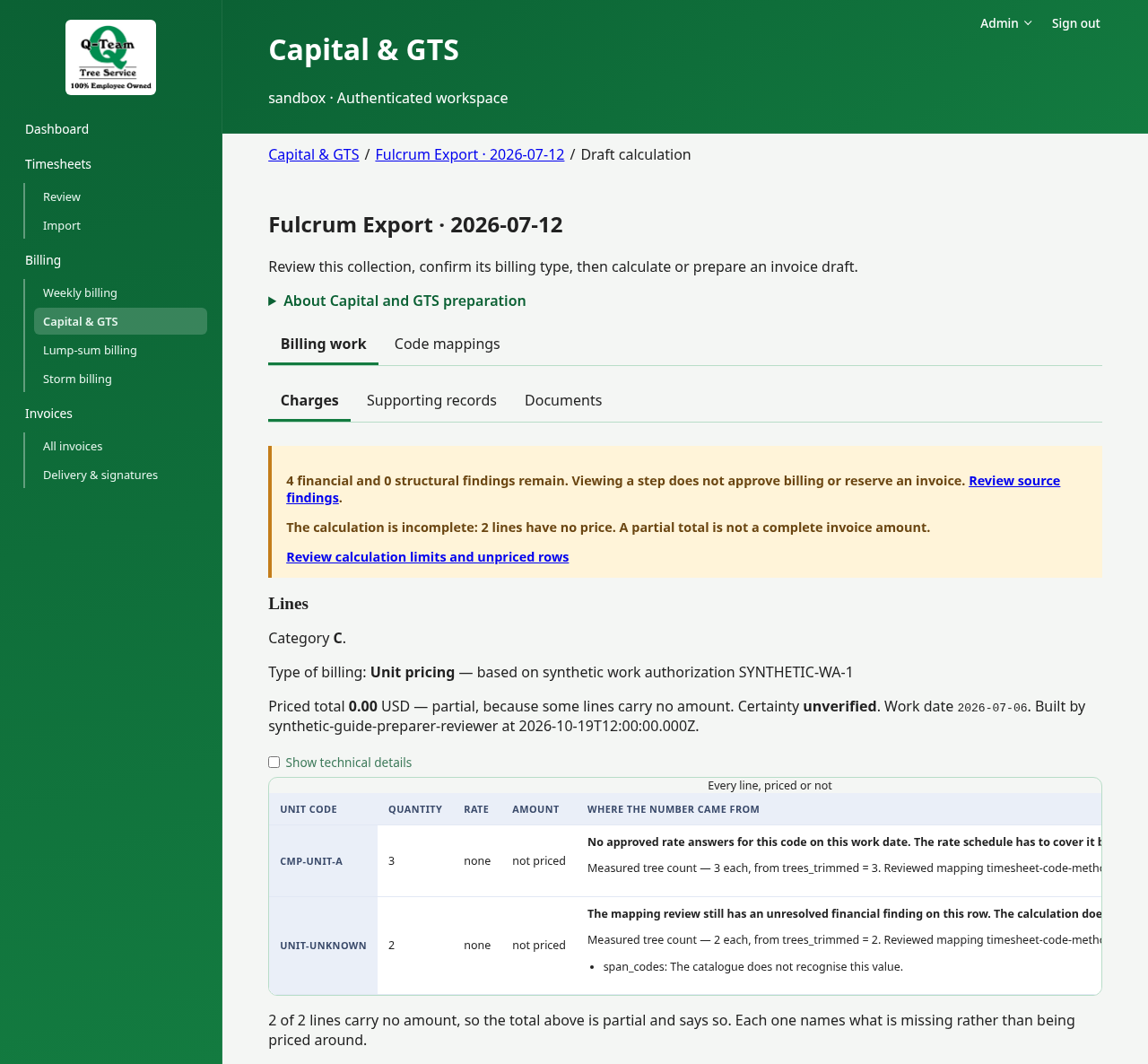
Calculate draft previews the whole collection. Open a calculation to trace your job's quantity, code, work-date rate and amount. Do not use the collection total as one job's invoice amount.
A blank rate is not zero. A partial result is not a full bill. If inputs changed, calculate again before using the preview.
4. Follow the invoice
Find the reserved number in All invoices. Review, approve and create its files. A downloaded draft preview is not proof that the invoice was issued.
GTS and rate dates
GTS has its own rules; the shared menu does not make it Capital work. Real-data GTS testing still needs source examples, rates and document rules. If the app says the deployment owner must configure a GTS profile, a GTS candidate cannot be reserved here.
A span that lists several activities is held. On Capital work it can be priced as one unit only when the code mapping has a reading for exactly those activities; the line then names them and the unverified reading. On GTS it stays held.
For Capital units, use the rate for the day the work was done. Do not use today's date or the week-ending date by default.