Appearance
Quick start: one Capital job
About 20–25 minutes. Keep Q-Team open in another tab.
This is the development site. It has only made-up records and sends nothing. The line under each page title starts with sandbox. Use a made-up Capital job, or ask Ben or Bill which one to use.
If the job already has an invoice, follow that record and its History. If a step is blocked, note the reason and ask Ben or Bill for a completed example. Do not guess missing facts.
1. Find and review the job
- Open Timesheets → Review. Choose By week. Under Review by week, find the week ending date and choose Open week.
- Open Timesheet details to see the timesheet table. Find your job by its Work date, Crew and Work order. Choose Show issues at the right of that row. Scroll the table sideways if needed.
- In the area that opens below the row, choose Open this timesheet in its collection. If several captures are listed, use the one Ben or Bill chose. Check that the next page says Showing one timesheet. Note the collection name; it is the batch of imported timesheets you will use in step 2.
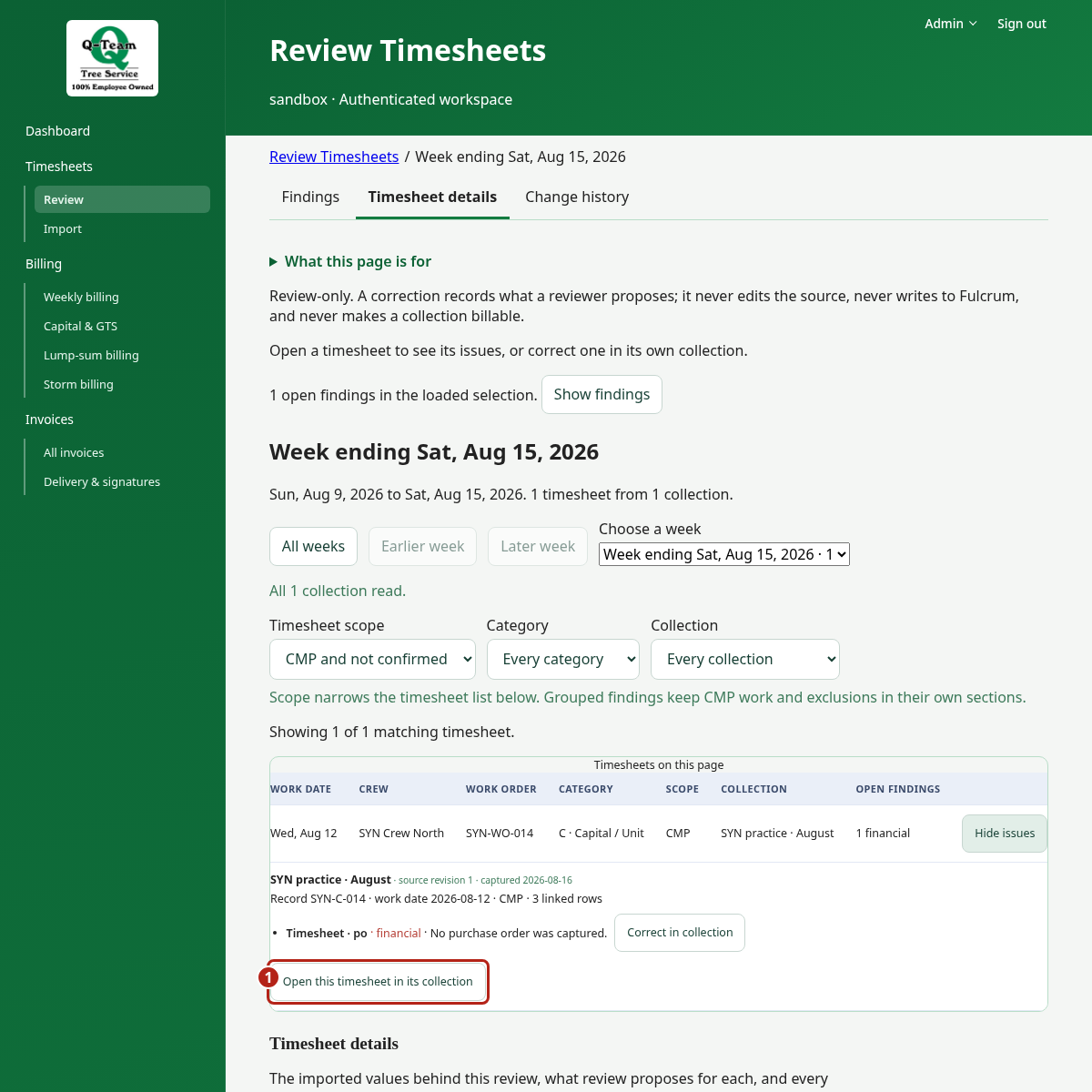
- Choose Findings. Under Open findings → To review in CMP scope, read the items for this job. If a group is closed, choose Show timesheets. Note the field it names, such as purchase order (po in the field table).
- Choose Timesheet details and expand Field-by-field evidence if closed. Find that field in the table. Original value is what was imported; Proposed is the app's suggested value. API interpretation, if shown, is how the app read the imported value. Check Corrected too, if shown; it is a saved change. These are not approved billing values.
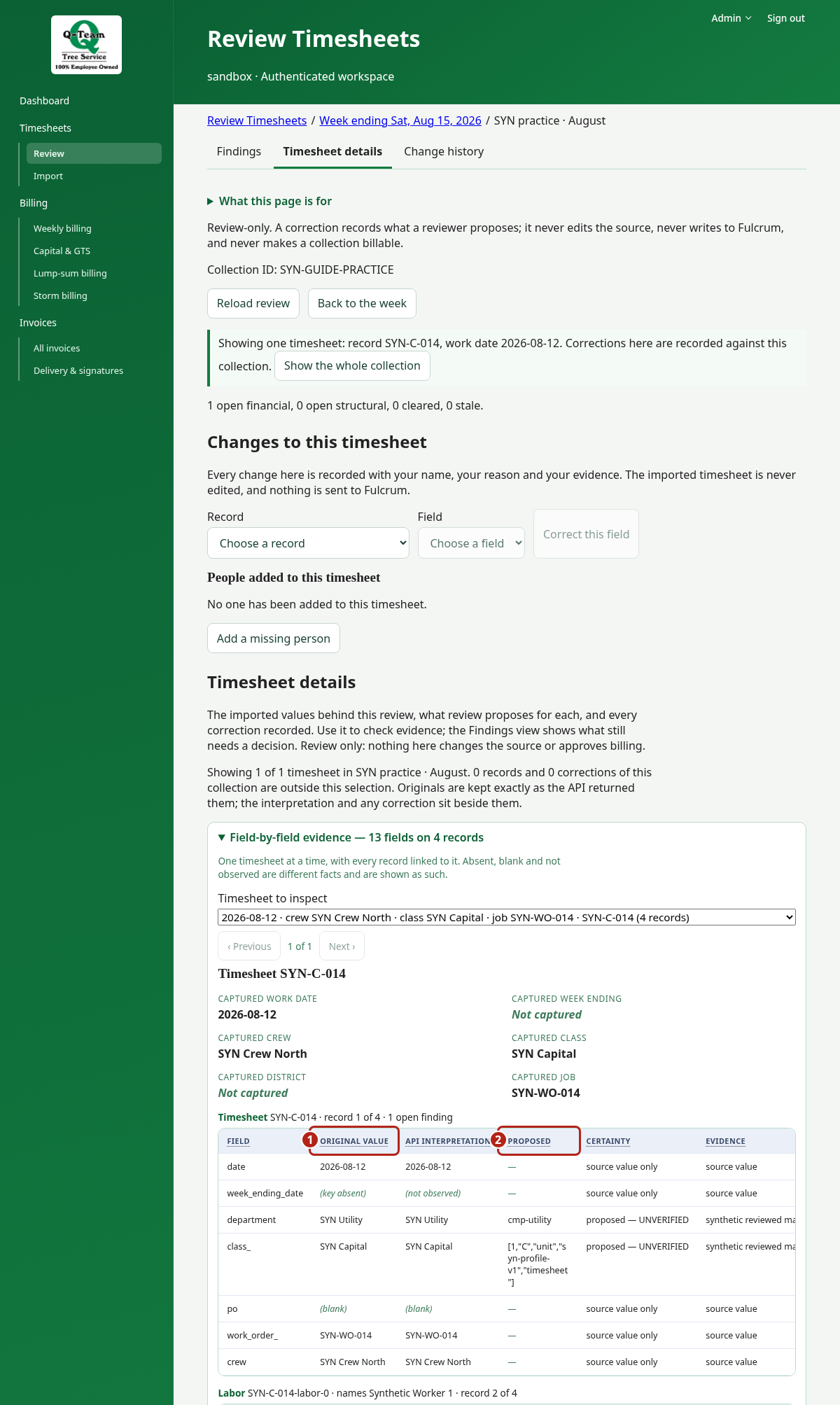
In this example, po is (blank) and Proposed is —: no PO was captured and none is suggested. Do not guess one. If you know the correct value and have proof, return to Findings and choose Correct beside the finding. Follow the correction steps; otherwise, note the blocker and ask Ben or Bill.
More review help, with screenshots.
2. Prepare a draft
Open Billing → Capital & GTS, choose By import, then Load work list, then Open beside the same collection. In Billing work → Prepare billing, use Check source to read the mapping findings, then Confirm billing type to check what CMP authorized.
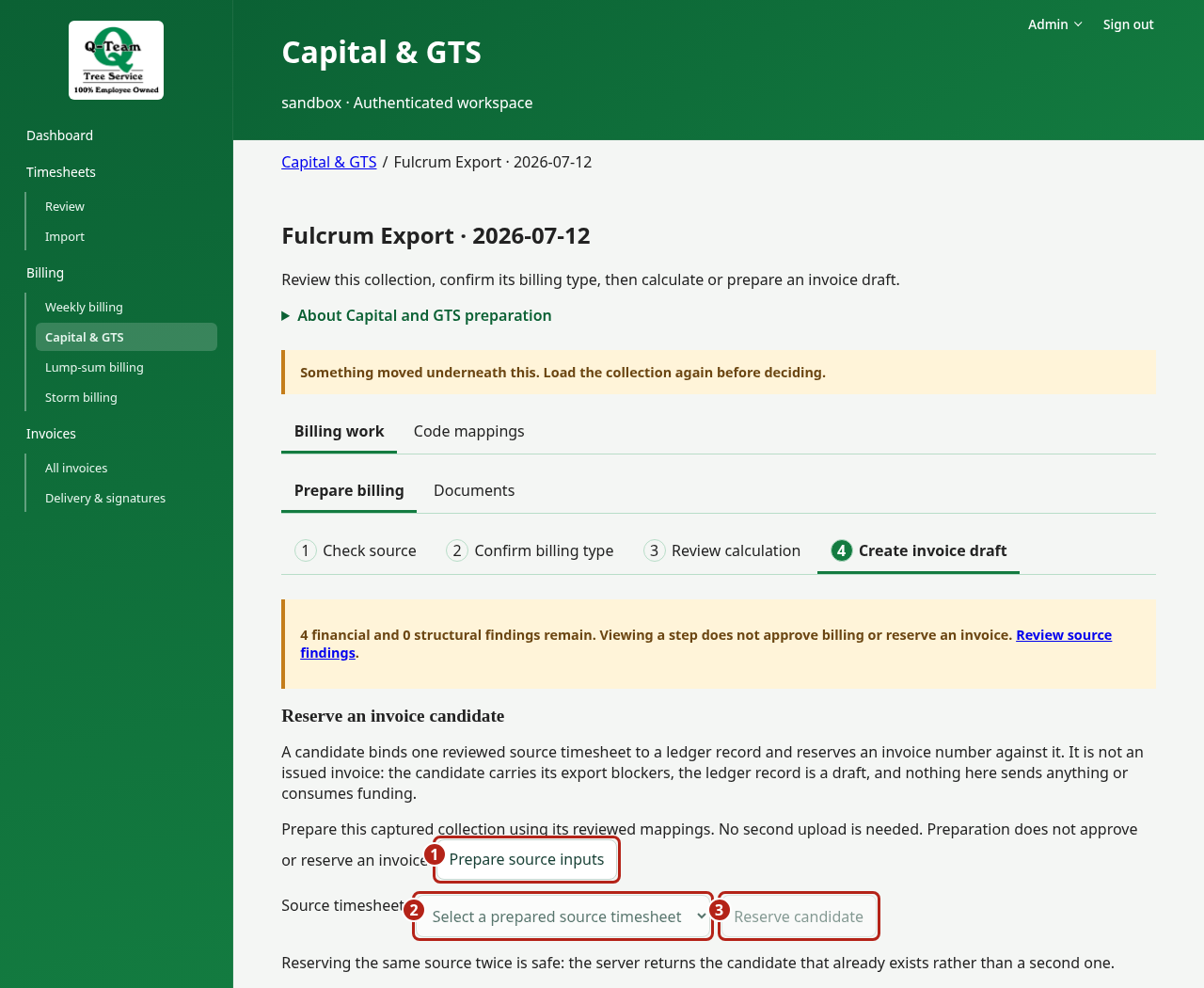
Choose the Create invoice draft step, then Prepare source inputs. Select your Source timesheet, then Reserve candidate. A candidate is a proposed invoice. Note its draft invoice number.
Show the screen
3. Check the charges
Check the candidate's Draft total, number of priced lines and source timesheet. Check the work quantity, code and rate for the work date.
The Review calculation step offers Calculate draft, a separate preview of the whole collection. Use it to inspect your job's lines, not to treat the collection total as this invoice's total. Capital details.
4. Review and approve
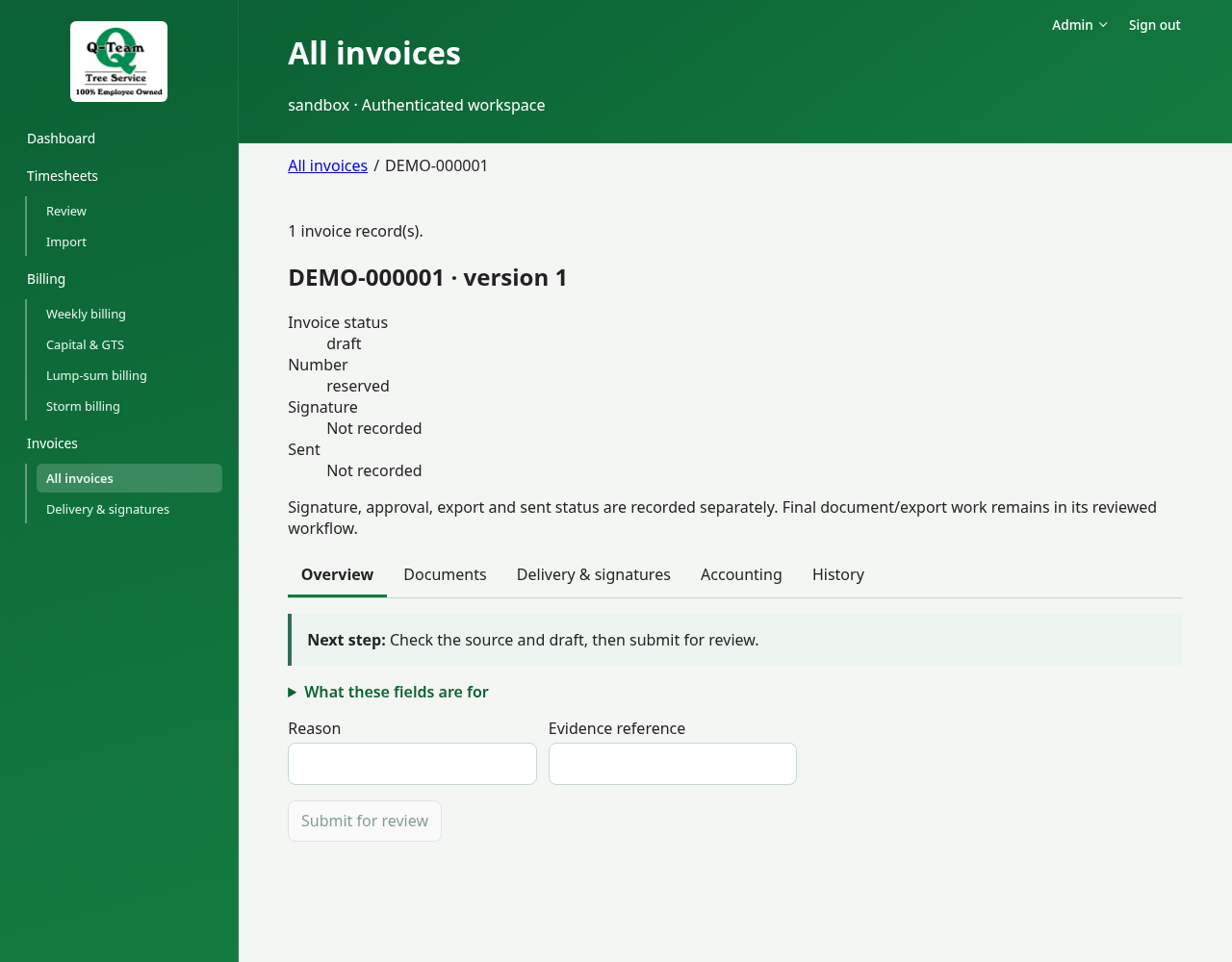
Go to Invoices → All invoices. Open the draft number, choose Overview and read Next step. Check the amount, job and PO/WO reference.
Enter Reason (why you are taking the action) and Evidence reference (where the proof is). Make clear this is practice. Then follow the offered steps:
- Submit for review.
- Approve.
- Finalize and issue.
Check the result after each click. A hold may still stop the invoice. Each action needs its own role on your account; if a button is missing, ask Ben or Bill. What these steps mean.
Show the screen
5. Open the documents
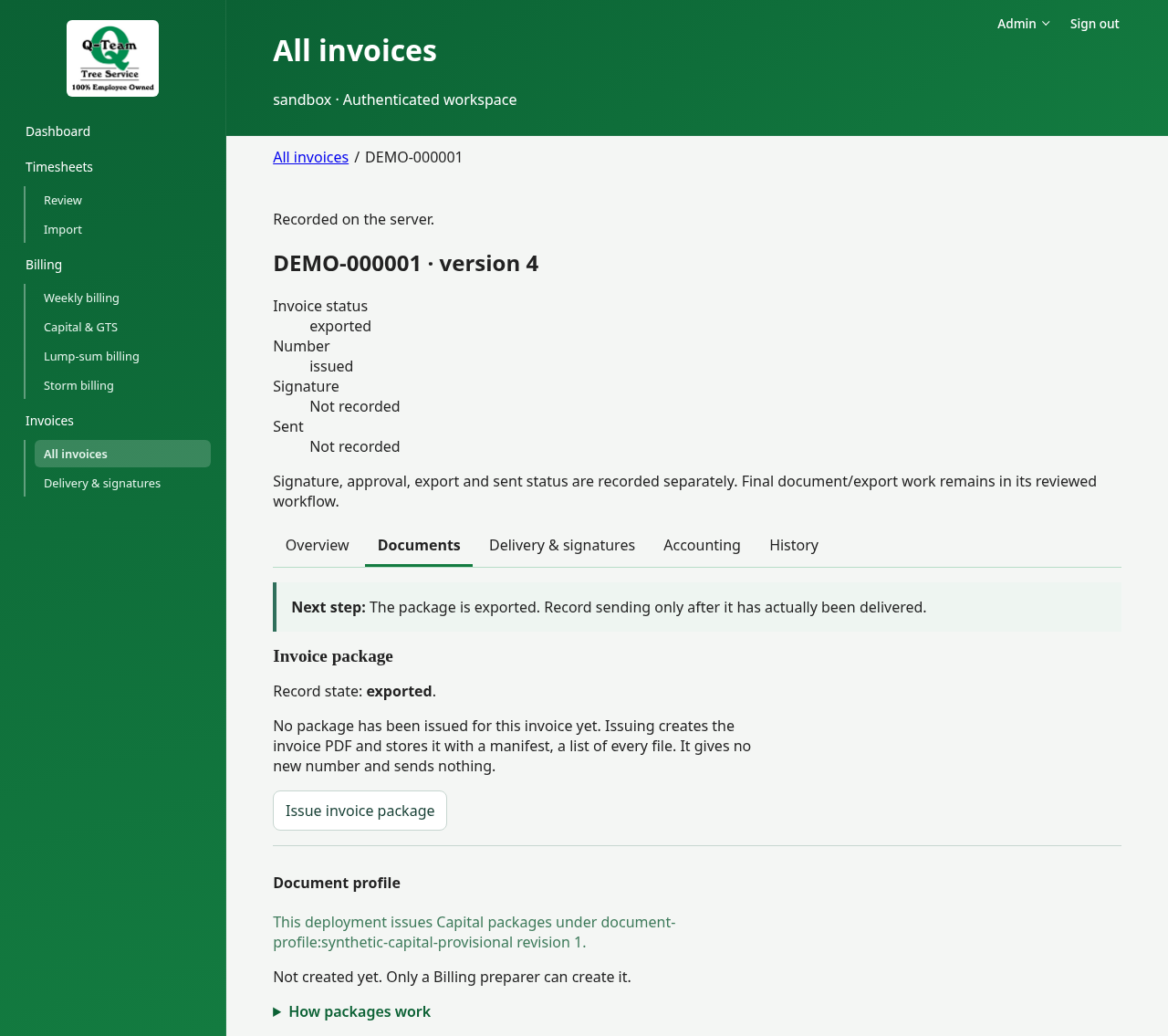
Choose Documents. Under Invoice package, choose Issue invoice package if no package exists. This creates the files. It does not create another invoice number or send anything.
Choose Get invoice link, then the download link that appears. Check its number, date, work description and amount. Not recorded on the invoice means the app has no value for that row; note it.
Show the screen
6. Check the handoff
Choose Delivery & signatures, then Prepare delivery, then Open prepared deliveries. Check who the package is meant for and which version it contains. Use only actions marked as test simulations. Delivery and returns.
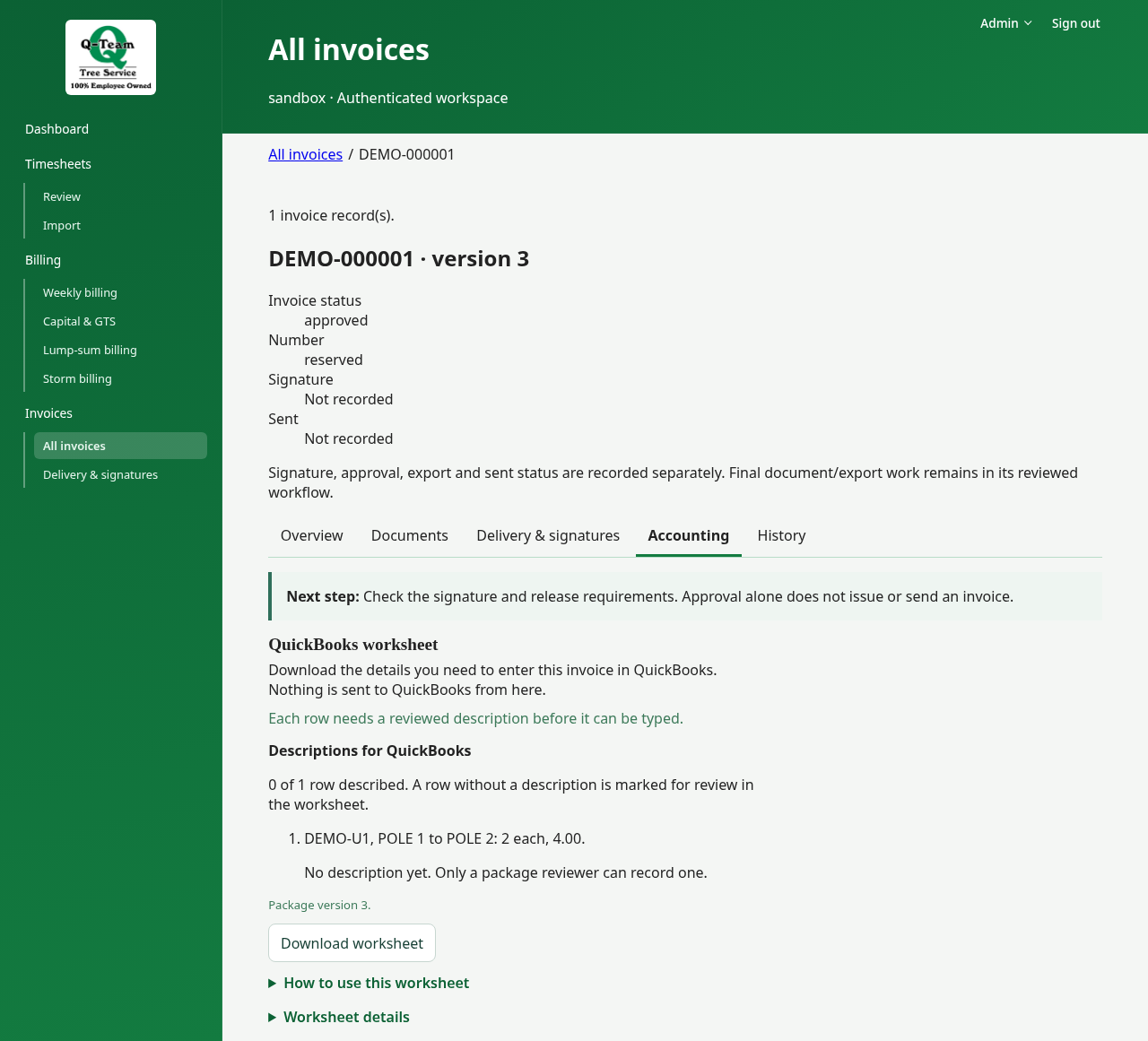
Back in All invoices, reopen the invoice and choose Accounting to see the QuickBooks worksheet if shown. Compare it with what you would type by hand. Do not enter this practice bill in live QuickBooks.
Show the screen
7. Give feedback
Note the page, what you expected and what happened. Include any rule that does not match how you bill the work.