Appearance
Review a week's timesheets
Timesheets → Review
The screenshots use made-up records. Your dates, jobs and collection names will differ. Select an image to enlarge it.
Use By week | By import to choose the list. Inside a review, Findings | Timesheet details | Change history are views of the same work, not approval steps. Switching views preserves corrections entered on the page; retry notices remain visible.
1. Pick a week
Choose By week. Under Review by week, find the week ending date and choose Open week. This gathers work across imported batches. You do not need to import it again.
Weeks run Sunday–Saturday, based on the work date. This view helps you review; it does not group invoices.
Wait for the reads to finish. If the app says the week is incomplete, some work may be missing. Use the retry button if offered.
2. Open one timesheet
- Open Timesheet details to see the timesheet table. Use Category or Collection to narrow the list if needed.
- Match the Work date, Crew and Work order to the job. Use Next page below the table if it is on another page.
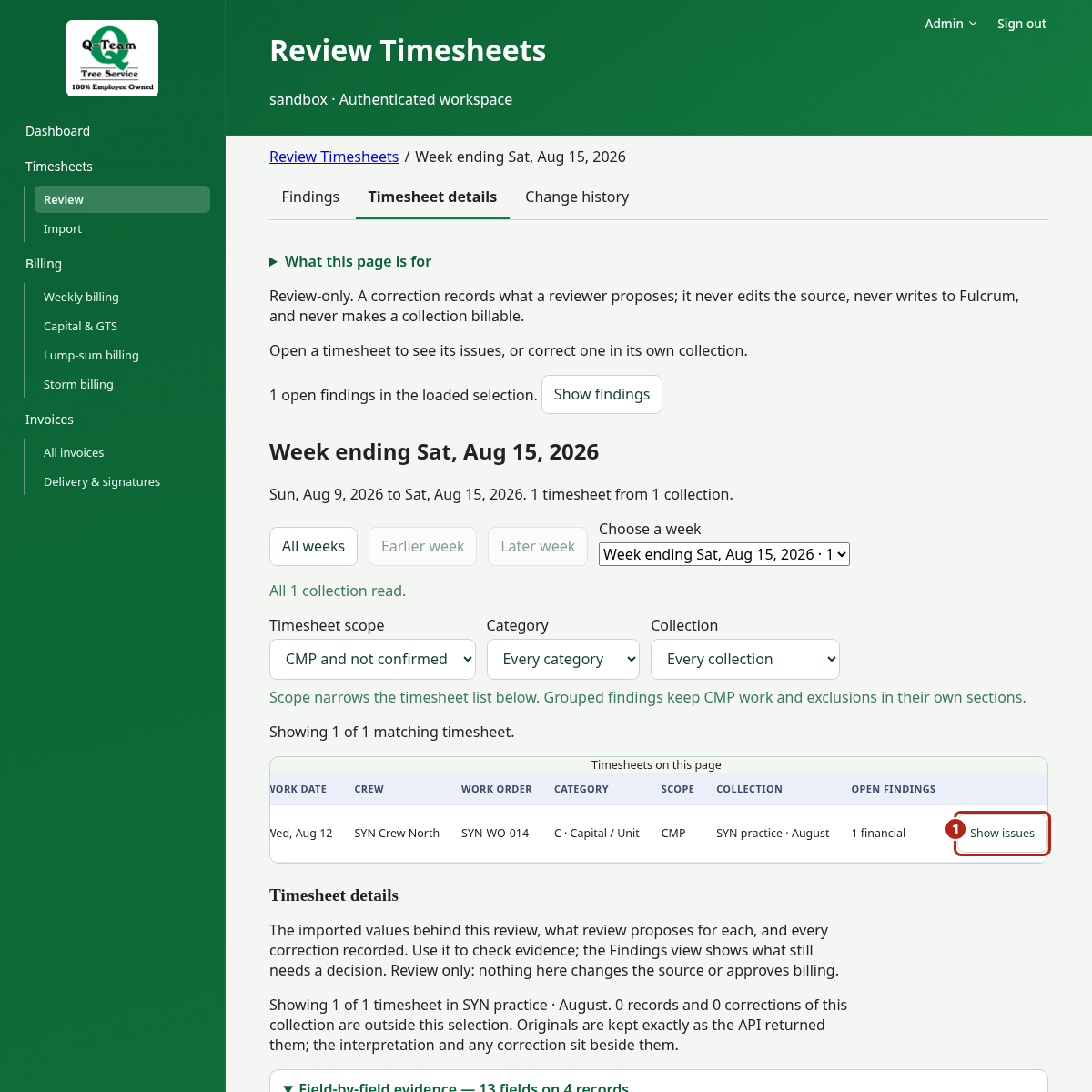
- Choose Show issues at the right of its row. Scroll the table sideways if needed. The row expands below.
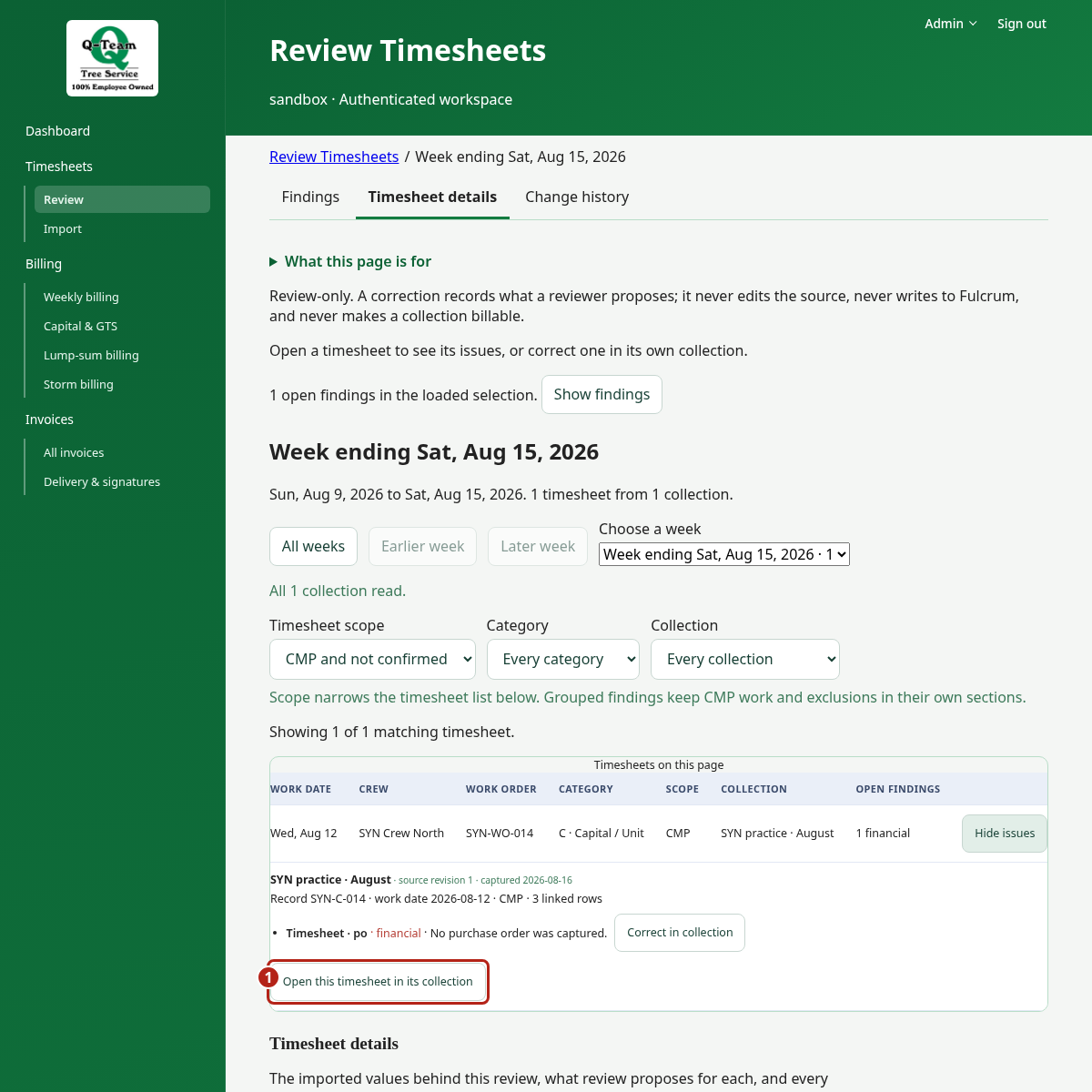
- Check the collection name and capture date in the expanded area. A collection is an imported batch. If more than one capture is listed, use the one Ben or Bill chose for practice.
- Choose Open this timesheet in its collection under that collection.
The next page should say Showing one timesheet and show its record ID. Note the collection name for the billing step. Use Back to the week to return to the list.
3. Read the findings
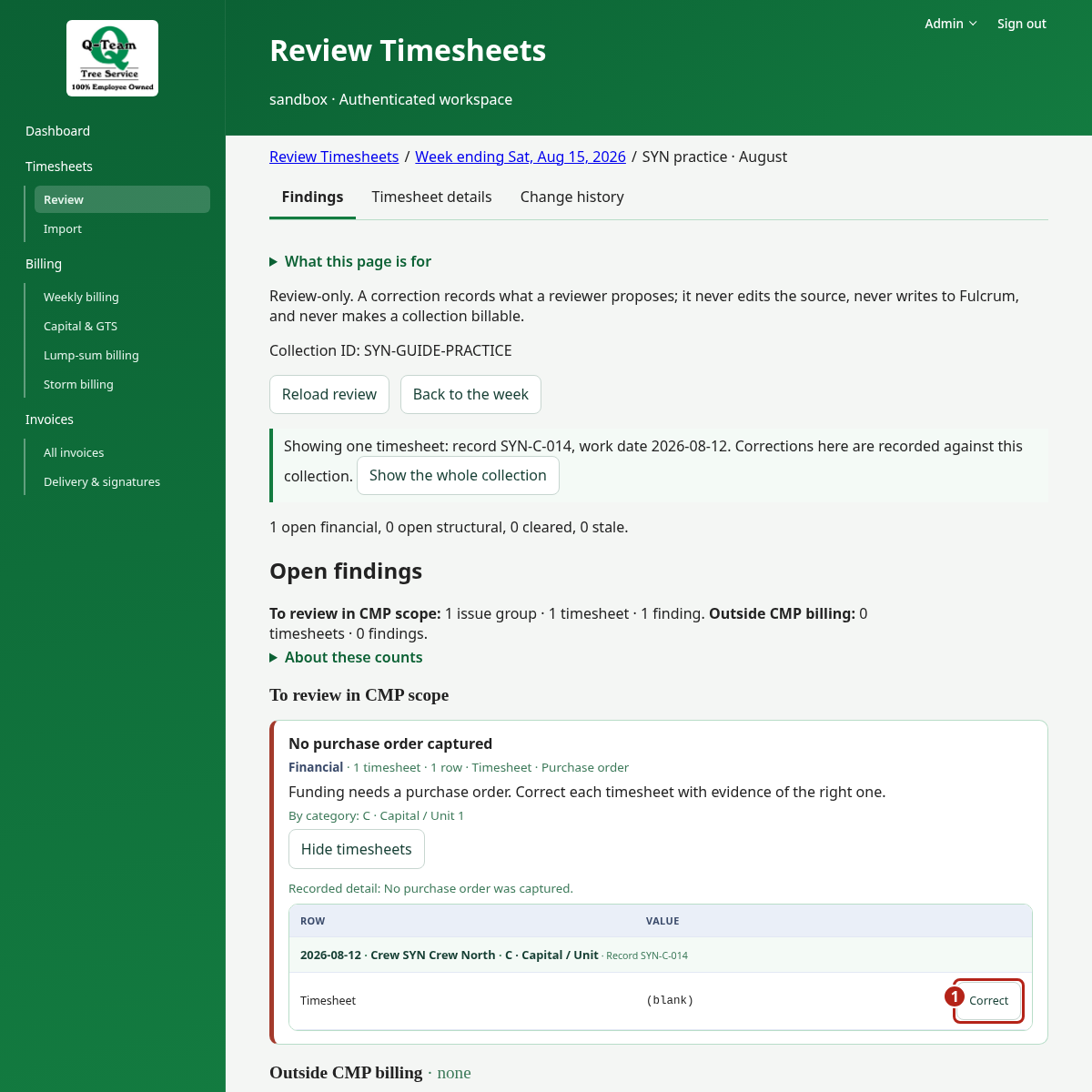
Open Findings. A finding is something the app needs you to check. Under Open findings, start with To review in CMP scope. Not used by lump-sum billing lists findings on lump-sum timesheets in fields that billing does not read; they have no Correct button.
Read each group that affects this job. If it is closed, choose Show timesheets. Check the row and field it names. Similar findings share a group, but each row needs its own review.
4. Check the values
- Open Timesheet details.
- Expand Field-by-field evidence if it is closed. The field tables appear below it.
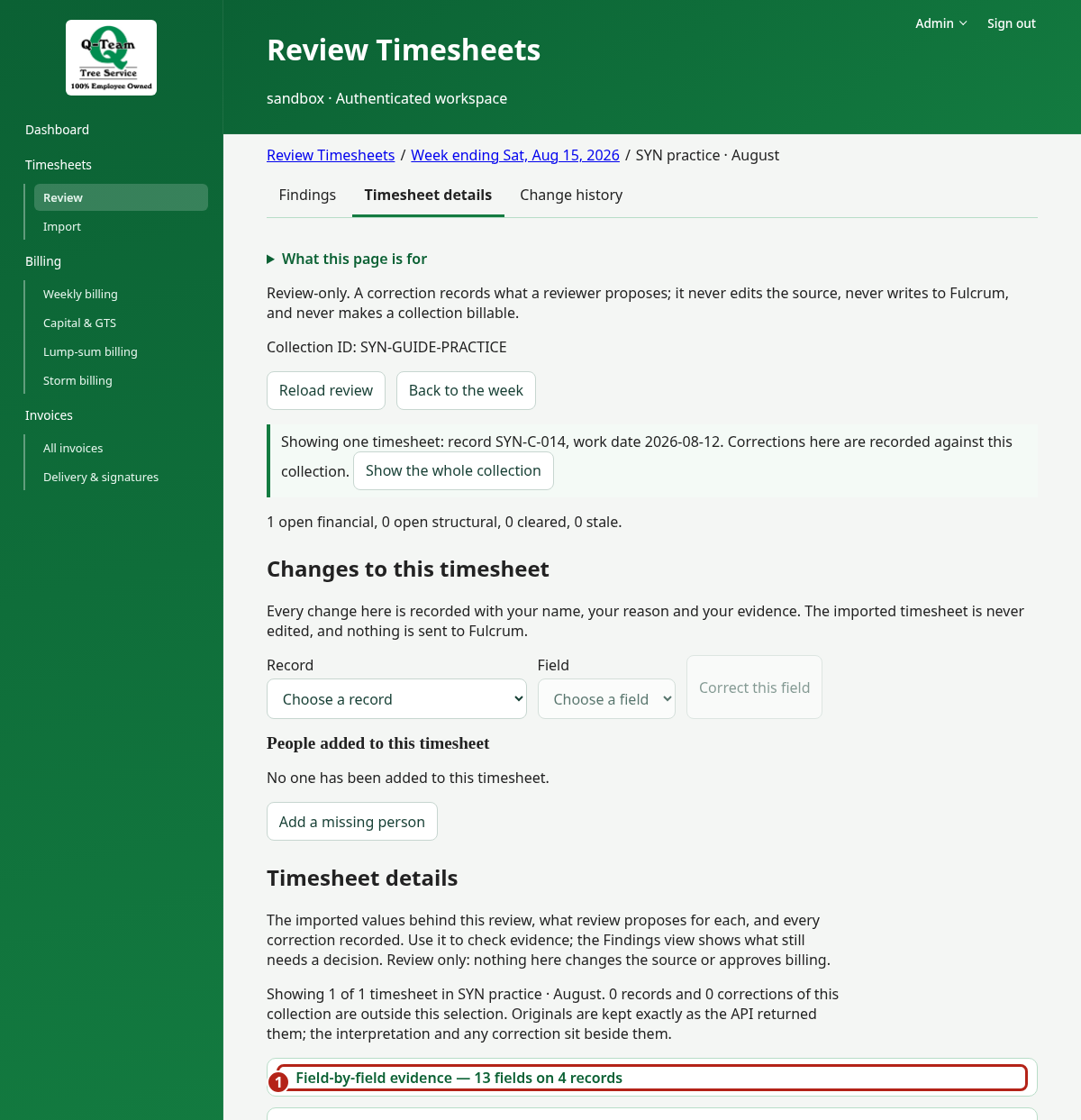
- Check Timesheet to inspect if more than one is listed. Find the record named by the finding: Timesheet, Labor, Equipment or Span. Then find its field, such as po for a purchase order.
- If the job has more than 10 records, use Next beside Records 1–10 of…, above the field tables. This moves through records for the same timesheet. The arrows beside the timesheet picker switch timesheets instead.
- Read across the field's row. Scroll the table sideways for hidden columns. Check the meaning of the values, not just whether the text matches.
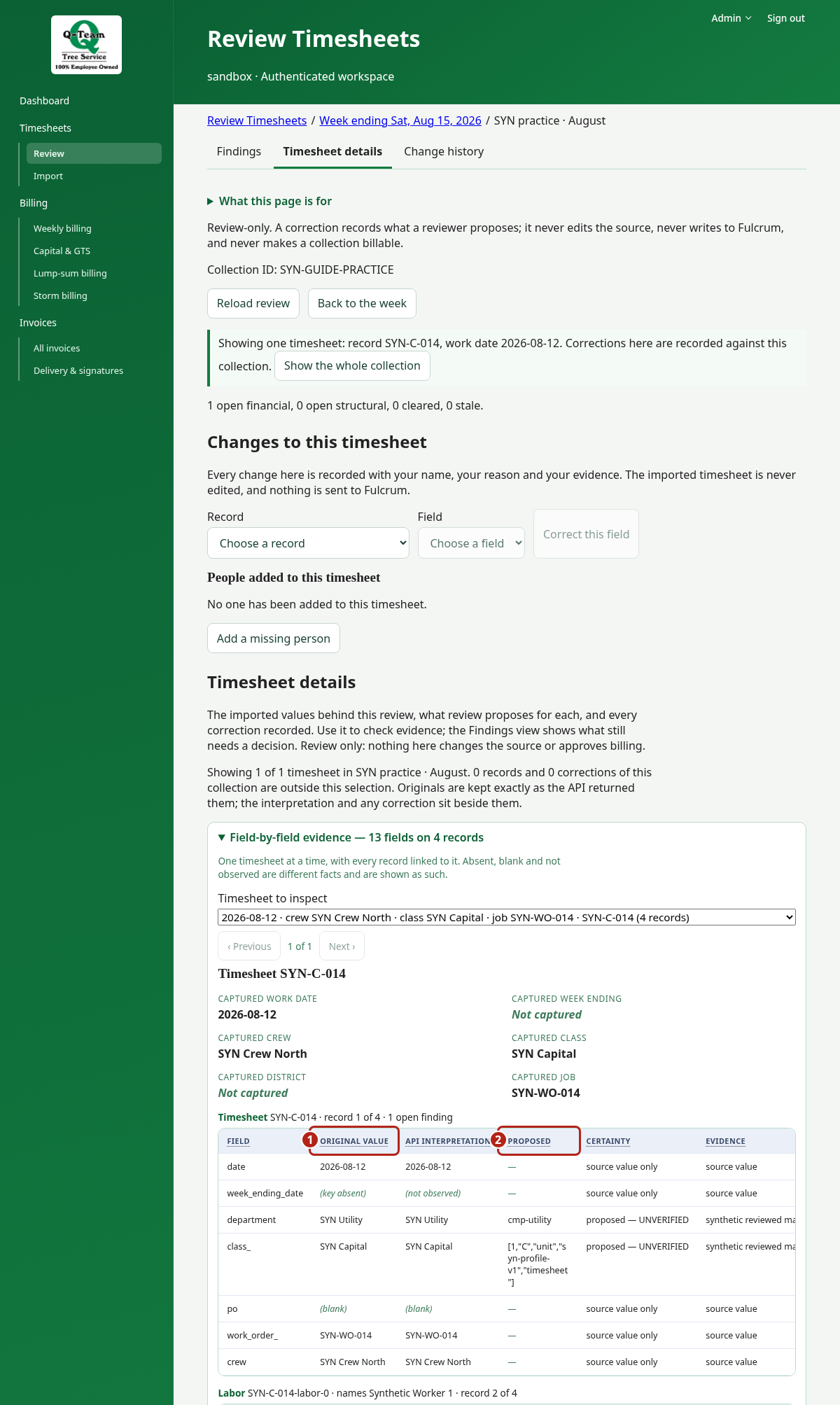
| Column | What to check |
|---|---|
| Original value | What was imported. (blank) means the field was empty. (key absent) or (column absent) means it was not included. |
| API interpretation, if shown | How the app read the imported value. It may turn a saved code or choice into readable text. |
| Proposed | The app's suggested value. — means none is suggested, not that the field passed review. |
| Corrected, if shown | A recorded correction now in use. Check this too; Proposed still shows the earlier suggestion. |
| Evidence | The source or rule behind the value. Check it if the suggested value looks wrong. |
Example: the finding says a PO is missing. In the po row, Original value is (blank) and Proposed is —. No PO was captured and the app has not supplied one. Ask for the right PO; do not invent it.
A code may look different but mean the same thing. In the example, SYN Utility becomes cmp-utility. The proposed code is not proof that the mapping is right, and these values are not approval to bill.
5. Act on what you found
The field tables are read-only. To fix a value, return to Findings and locate it under Open findings and choose that row's Correct button. To correct a field that has no finding, use Changes to this timesheet on the one-timesheet page: choose the Record and Field, then Correct this field. Follow the correction steps.
If there is no Correct button, or you lack the right value or proof, note the finding and ask Ben or Bill. A financial finding can block billing. Do not change values just to clear it.
Missing work, repeat captures and counts
A job may appear in more than one capture. Check its collection and date before treating it as separate work. Use About these counts to understand the totals. If the source changed between captures, the expanded row lists each changed field with Before and After.
A correction belongs to the import it was made on. If a newer import brings the timesheet back, it shows … was corrected on an earlier import. Choose Correct there to keep the earlier value or accept the new one. A note does not clear it, and billing waits until you decide.
Records without a usable work date have their own area. Do not guess a date to put them in a week. Other scope and audit details are still available; closing those details does not clear a finding.
Next: choose the right Billing page. A week with no findings is not yet an approved bill.