Appearance
Review and issue an invoice
Invoices → All invoices
Each step needs a role. A Billing preparer sends a draft for review, a Billing approver approves it, and a QuickBooks exporter finalizes and issues it. A preparer sees only the invoices assigned to them.
Find the number from the Billing page. Open it and read Next step. Check the job, amount, PO/WO reference and History.
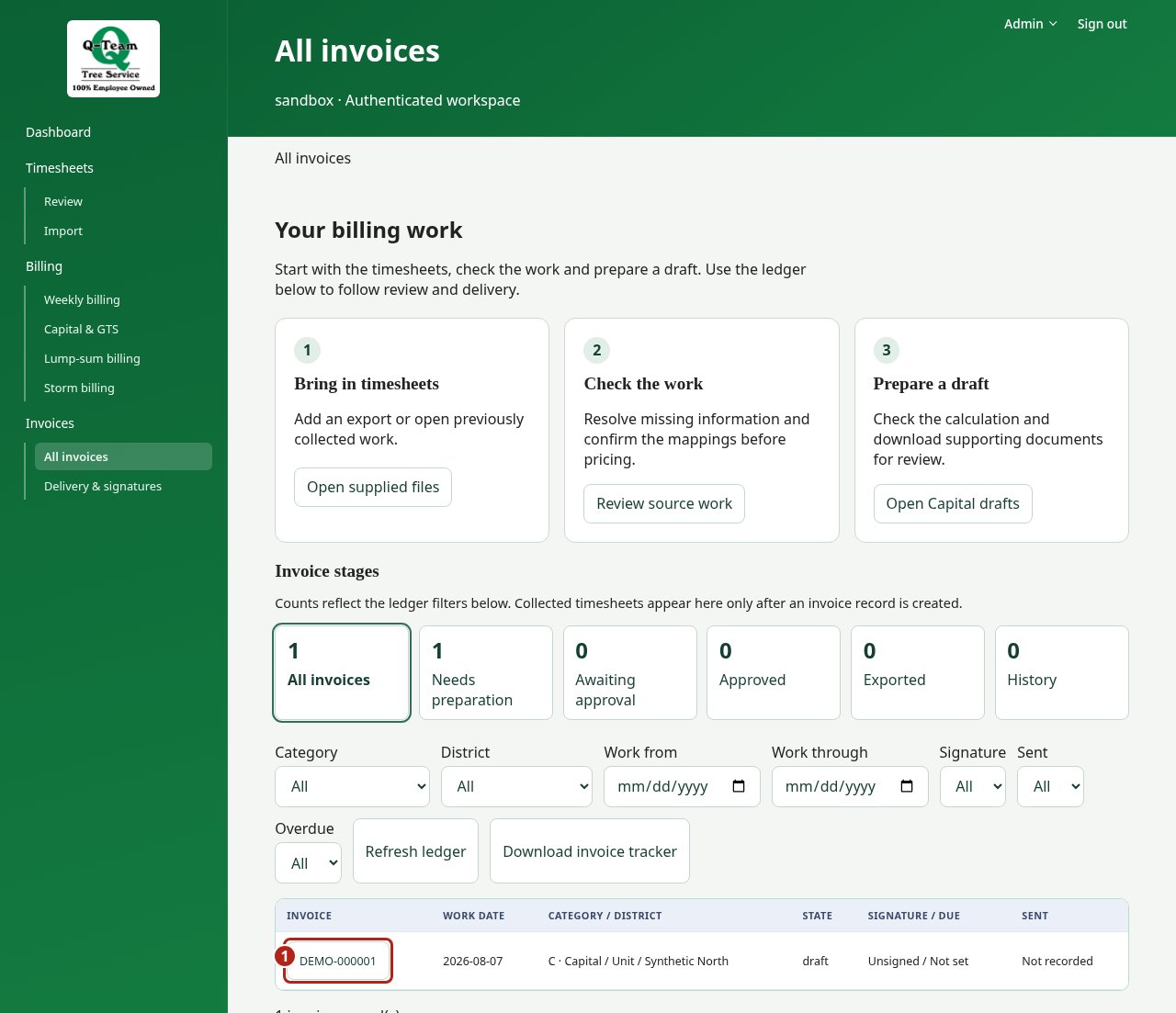
Use the invoice views
Overview shows the lifecycle and the next permitted action. Documents holds package creation and downloads; Delivery & signatures holds signature/send records and delivery preparation. Use Accounting for the manual-entry worksheet and History for recorded changes.
These are views, not a required sequence. Switching views keeps entered work; holds and uncertain-save notices remain visible. The breadcrumb returns to the invoice list, and each view can be bookmarked.
Available actions
| Action | Result |
|---|---|
| Reserve an invoice number | A numbered draft linked to the work. |
| Submit for review | The draft is ready for review. |
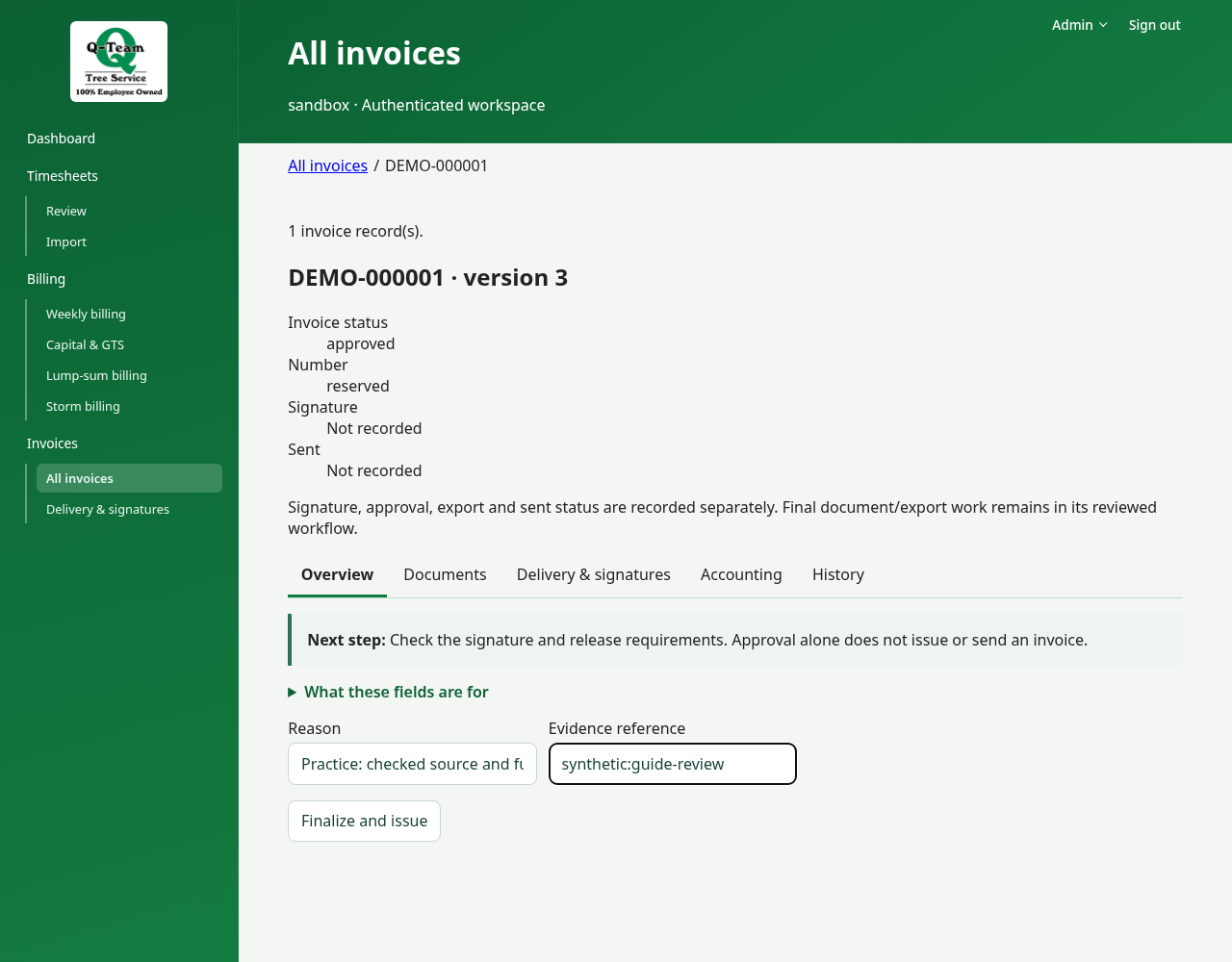
| Approve | Approval is saved for that version. |
| Finalize and issue | The app checks the source and funding, then commits the invoice number. |
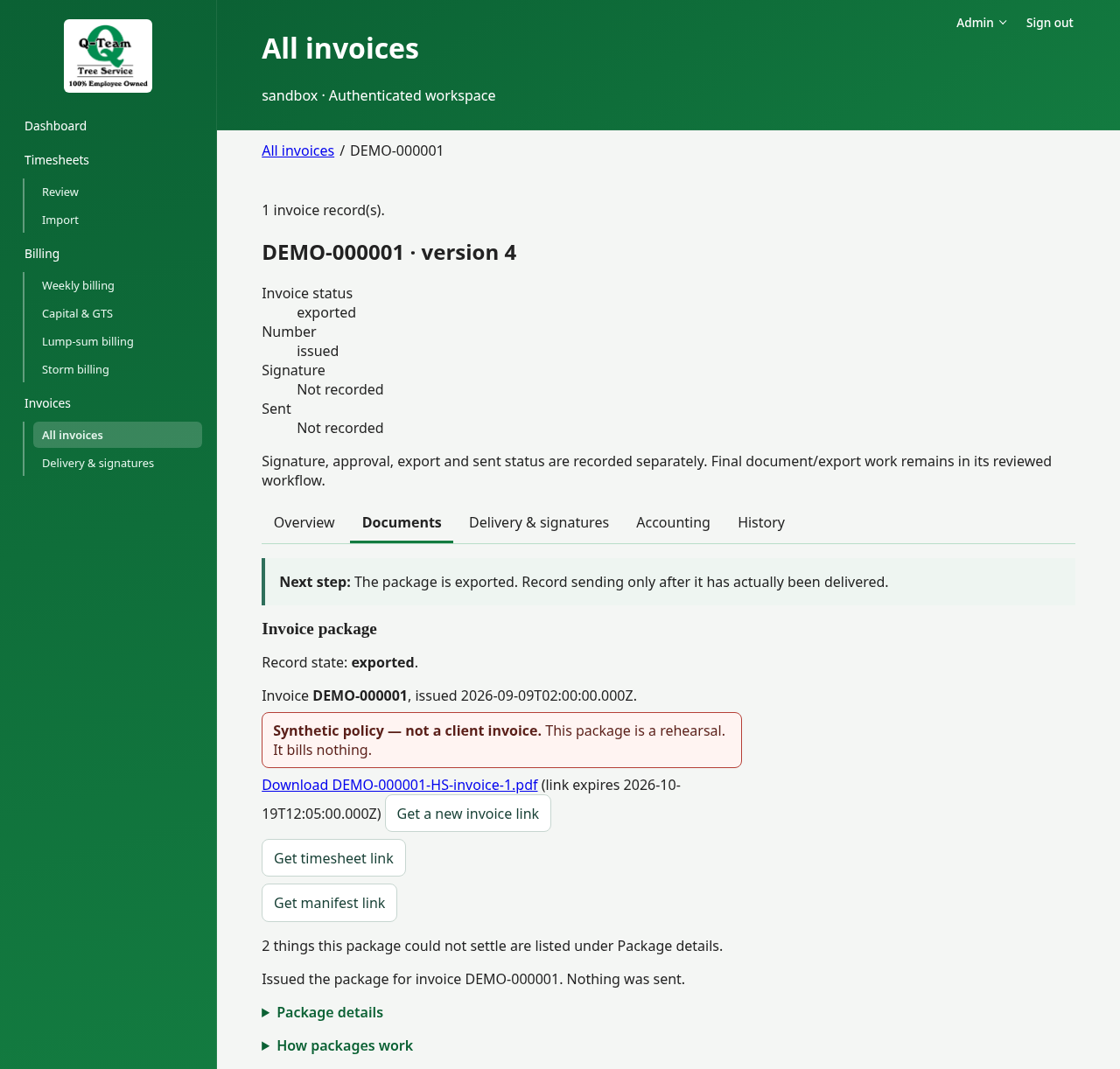
| Issue invoice package | The app creates and saves the document files. |
| Prepare delivery | The files are ready for the next handoff step. Nothing is sent. |
You see only the actions allowed for your role and the invoice's state. If a step is held, read its reason. A change in the source or funding can still stop an approved draft. So can a correction from an earlier import that has not been decided, or a person added in timesheet review; the message says what to do.
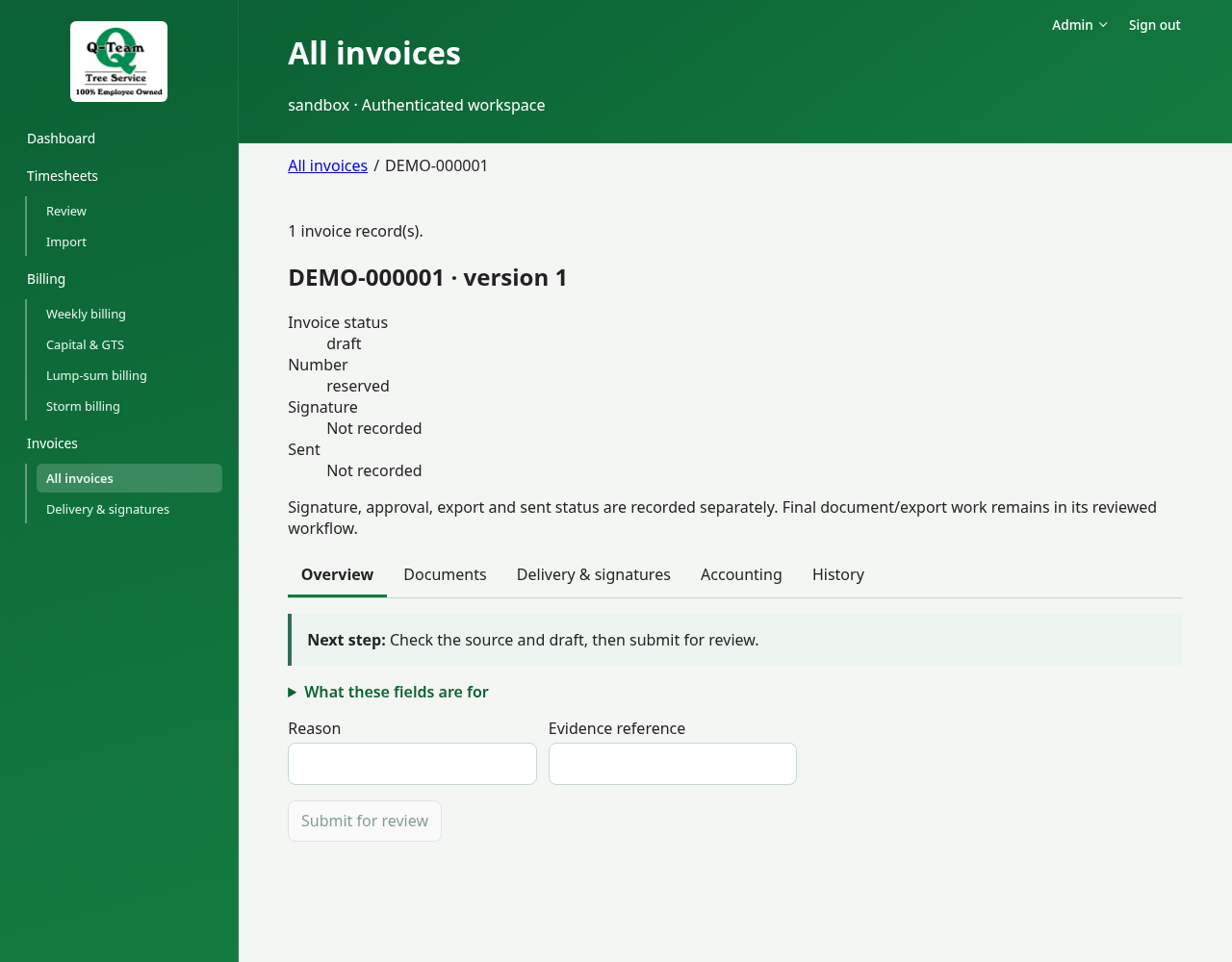
Fill in Reason and Evidence reference
Reason says why you are taking the action. Evidence reference says where the proof is. It does not upload a file.
For example, after a practice review, a reason could be “Practice review: checked this job's units and total.” For evidence, name the actual timesheet and review note you used. Do not copy that reason unless it is true.
Open the package
After finalizing, open Documents and choose Issue invoice package. Choose Get invoice link, then the download link that appears. Use the other file-link buttons for the support files. Check the number, date, work description and amounts. On a Capital or GTS invoice, line descriptions are left blank, and header rows such as Bill to may say “Not recorded”. Its signature boxes are blank and do not record an approval. Package details shows which inputs and layout were used.
If a link expired, use the new-link action. If issuing got no answer, use Issue again. It retries the same request; do not reserve another invoice.
Next: Delivery & signatures, then accounting handoff.
Signatures, rework and voids
Open Delivery & signatures to record a signature or send. Signature date comes from the signed return, not today's date. For practice, use only marked test-return flows.
Voiding a number, requesting rework and replacing an issued invoice are different actions. Check the state and history first. Ask Ben or Bill before trying them on shared practice records.
Issued files stay as issued. A correction keeps the old record and its history. A signature or sent status does not mean payment.