Appearance
Prepare weekly billing
Billing → Weekly billing
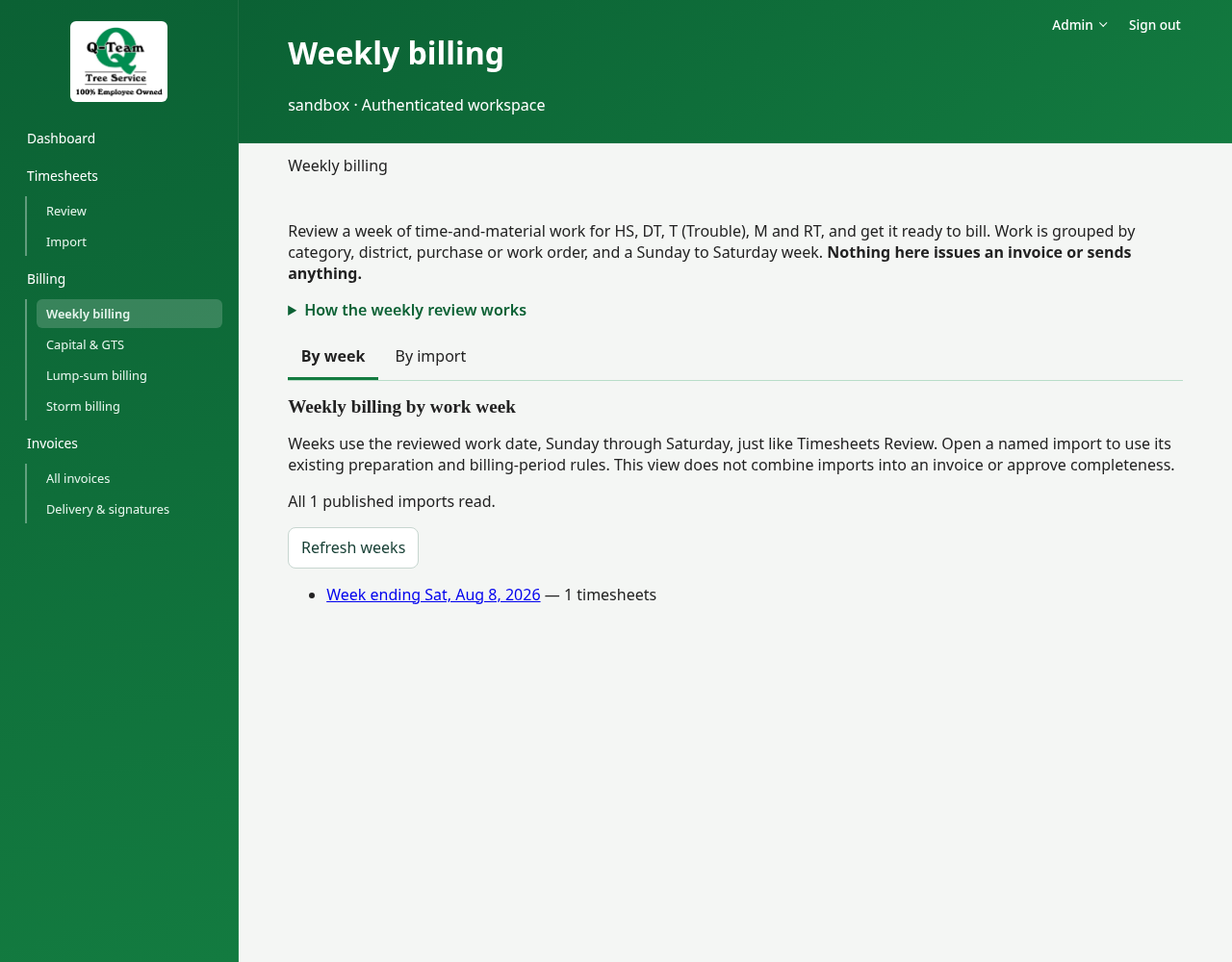
This page opens By week by default. Choose a Sunday–Saturday work week to see distinct timesheets grouped by customer and billing category. By import remains available for tracing a capture. This page turns reviewed work into weekly charges. The week view under Timesheets is for source review, not pricing.
Within a selected week, Preparation holds five steps: Check timesheets → Review labor/time classes → Confirm completeness → Review charges → Create invoice drafts. Supporting records contains the week’s members and exclusion controls; History shows recorded changes. Switching these views keeps entered notes, but refreshing or leaving the record can clear unsaved work.
The highlighted step shows where you are, not what has been approved. Existing role permissions and billing checks still apply. Each view has a bookmarkable URL, with the breadcrumb above it for returning to the selected week or import.
1. Open the work
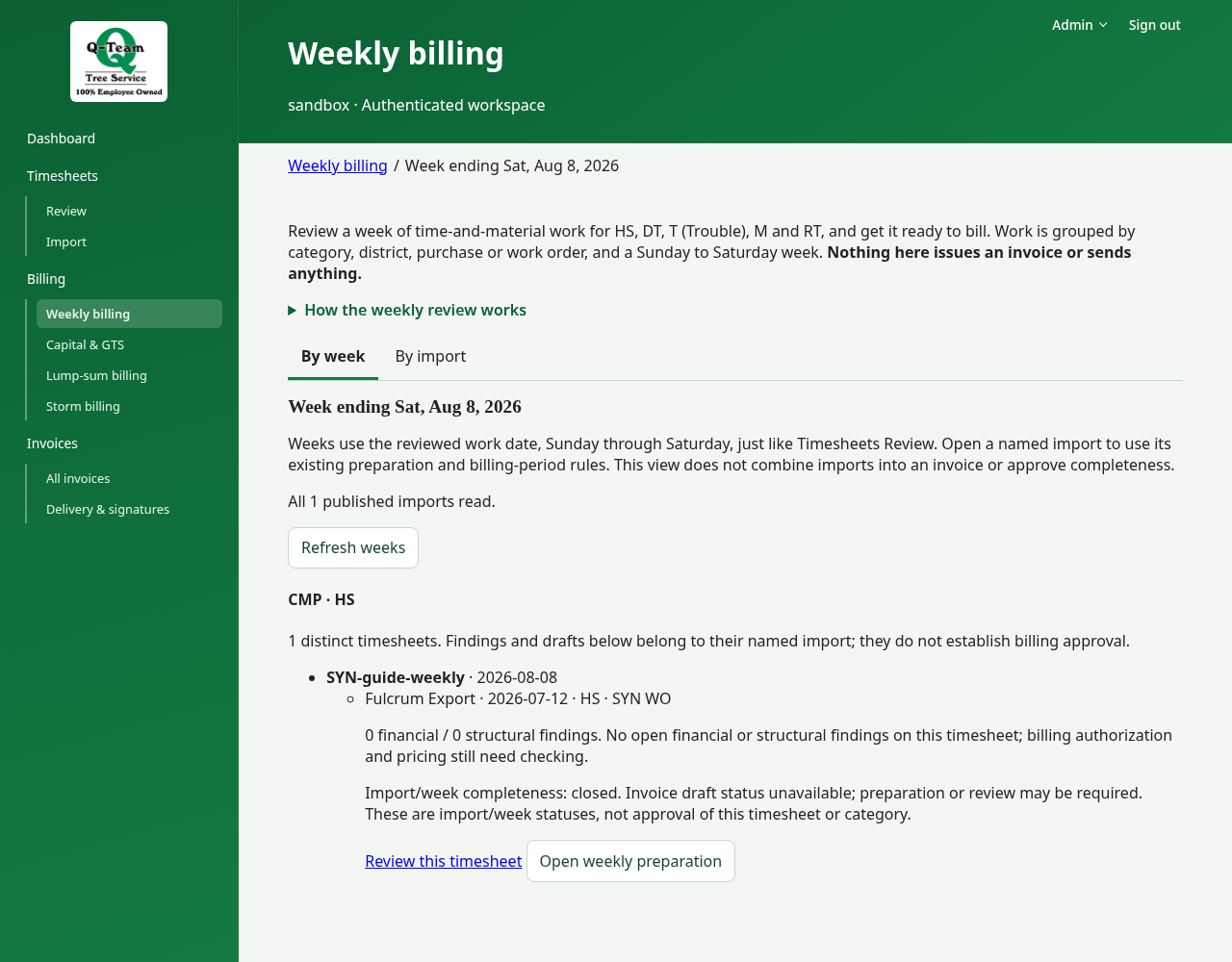
By week: choose a week, then Open weekly preparation beside the named import. Findings, completeness and invoice-record status identify what needs attention; statuses belong to the import/week, not necessarily the individual timesheet or category. Missing/conflicting dates remain under Needs a work date. A Billing preparer sees the work, but invoice draft status shows only for a role that can read billing records, such as Billing reviewer. Repeat observations stay visible without increasing the distinct-timesheet count; this view does not merge imports or change invoice boundaries.
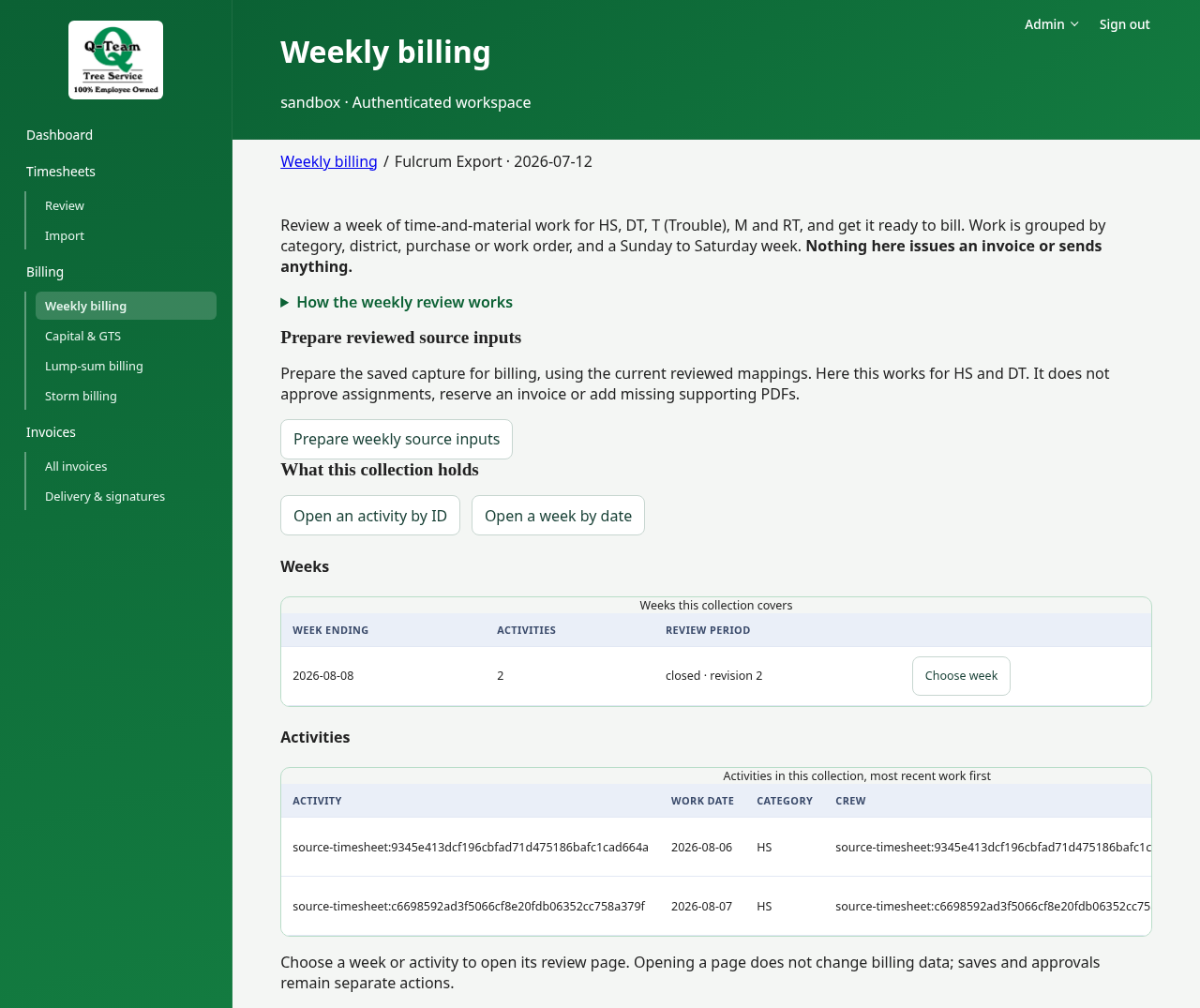
By import: under Collections to review, choose Choose beside your collection. Use Prepare reviewed source inputs if offered, then read the result. This does not reserve an invoice number.
Under What this collection holds, choose Choose week or Choose activity on the row you need. Scroll the table right if the button is hidden.
2. Review labor and time classes
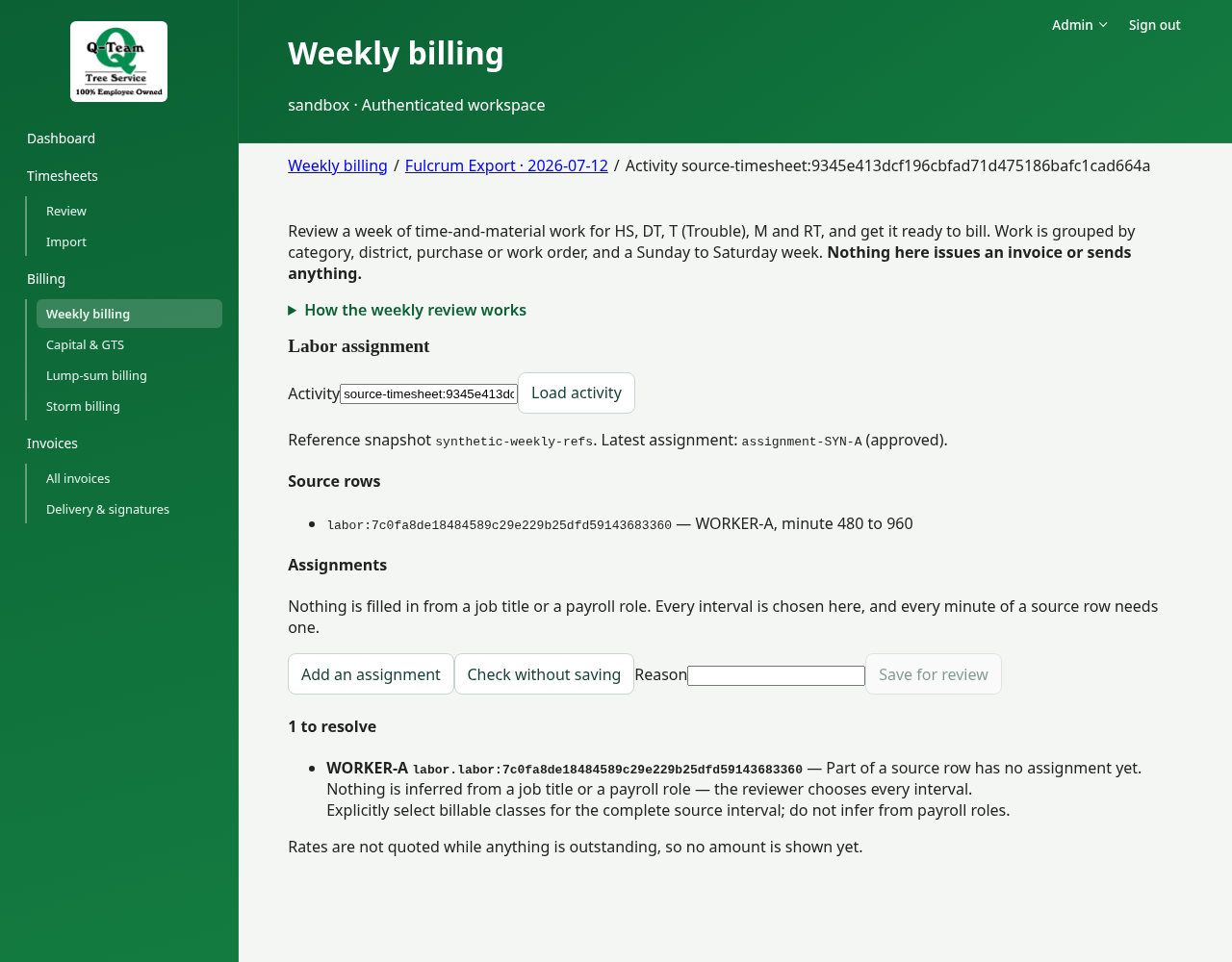
Choose Review labor/time classes, then open an activity. In Labor assignment, compare the source rows with the assignments. Check the workers, activities, hours and equipment.
For Trouble work, also check Time classes (Trouble). Do not infer overtime from a category code.
If a Ground Crew row lists several people, the app lists each person on their own with the row's times; nothing is divided. A row listing several people under another role stays out of the week until its role is corrected in Timesheets → Review. Do not split hours yourself.
3. Confirm completeness
Choose Confirm completeness. A Billing reviewer records a note for each day and closes the week only when its timesheets are accounted for. A charge preview is still available before closing, but is not proof the week is ready to invoice.
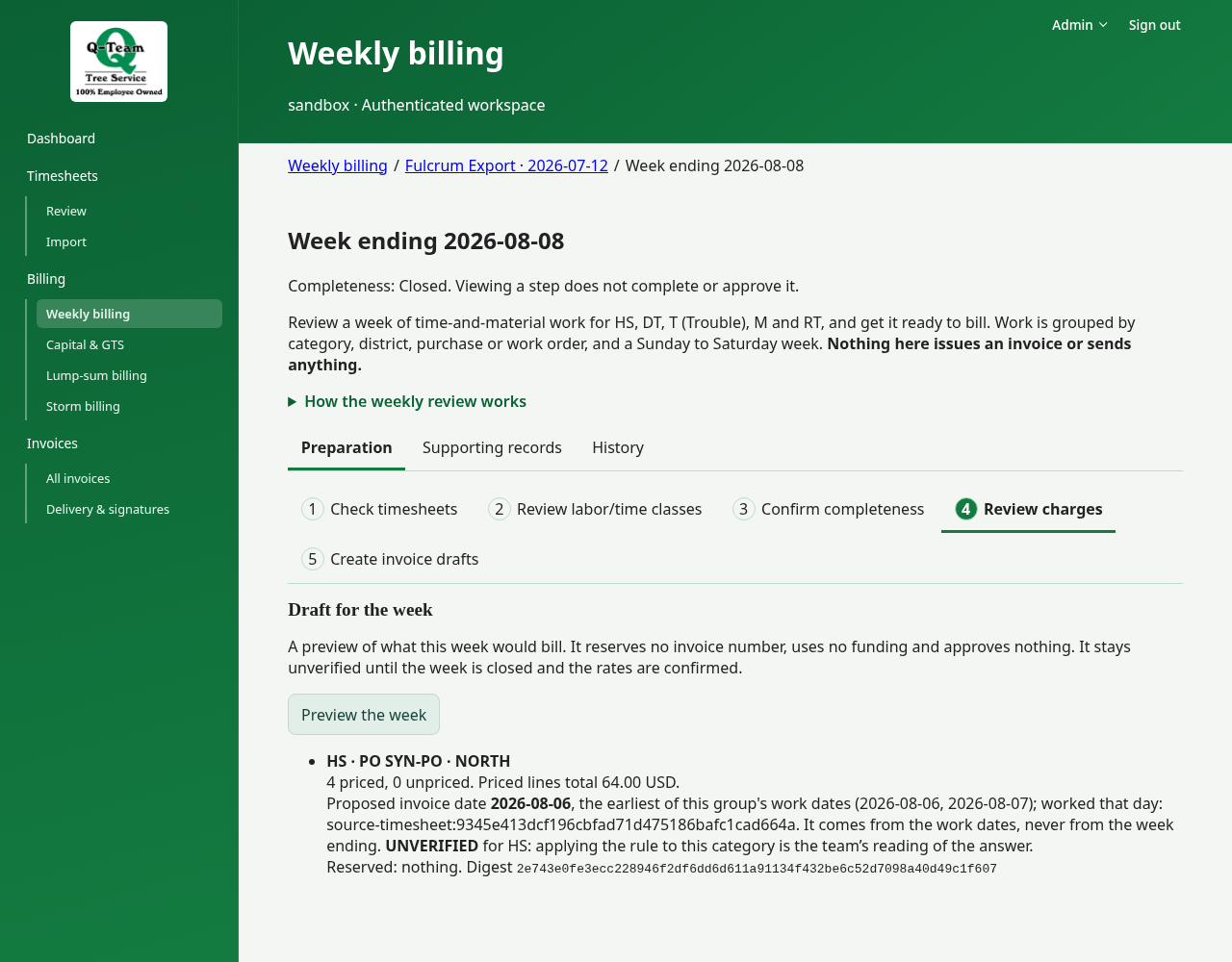
4. Review charges
Choose Review charges. In Draft for the week, choose Preview the week. Check each group's description, hours, rates, total and PO/WO reference. Check the invoice date too.
One week can have several groups. Work with the same PO is not always billed together. A missing rate or rule stays a hold. So do overlapping shifts for one worker and a person added in timesheet review.
5. Create invoice drafts
This step needs the Billing preparer and QuickBooks exporter roles: the preview reads every reserved invoice, and reserving gives an invoice number.
Choose Create invoice drafts. Under Invoice candidates for the week, choose Preview the candidates. Reserve the group you mean to bill and note its number. If it already has a number, use that record.
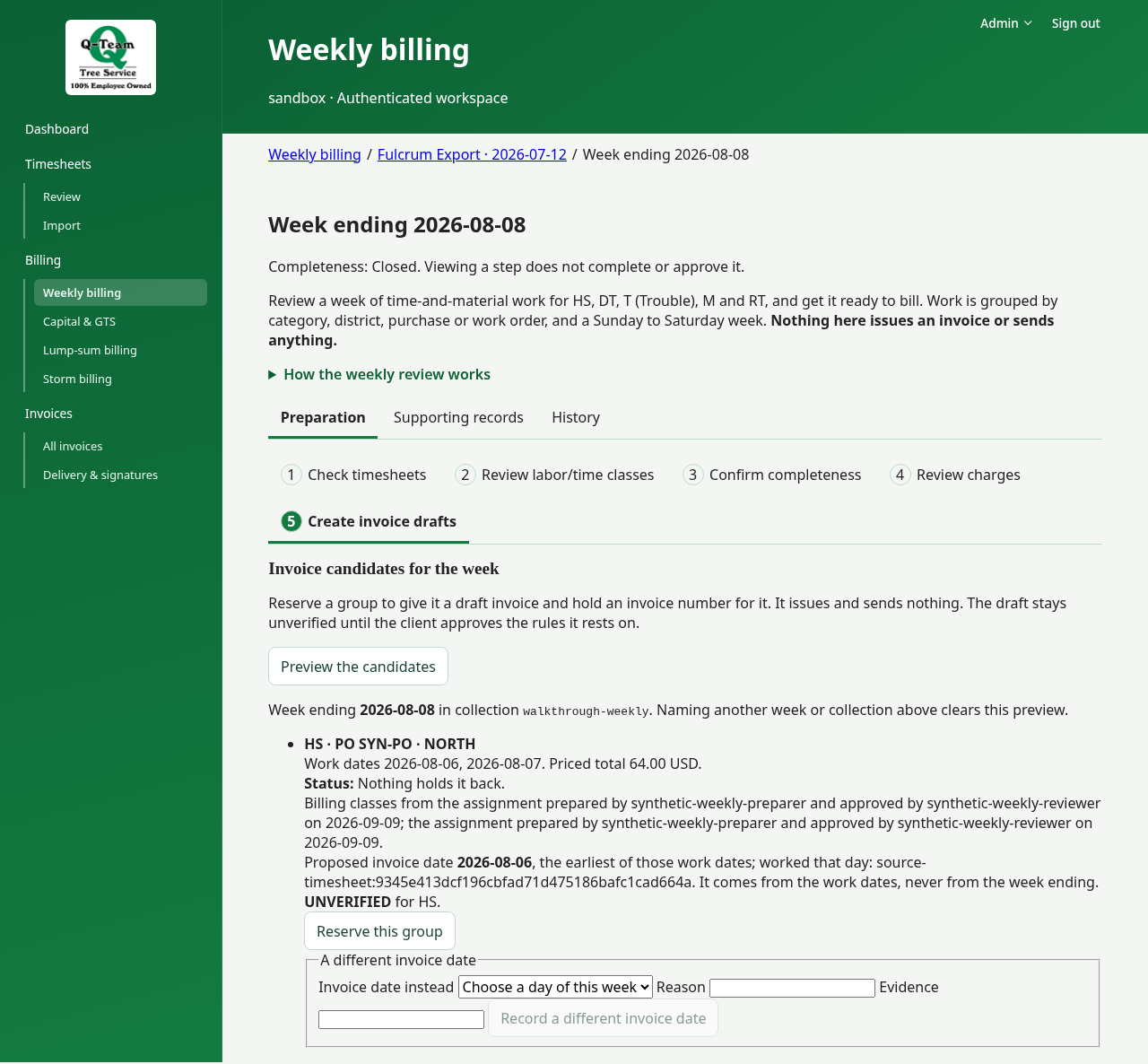
Open it in All invoices and follow the review steps.
Period controls and changed work
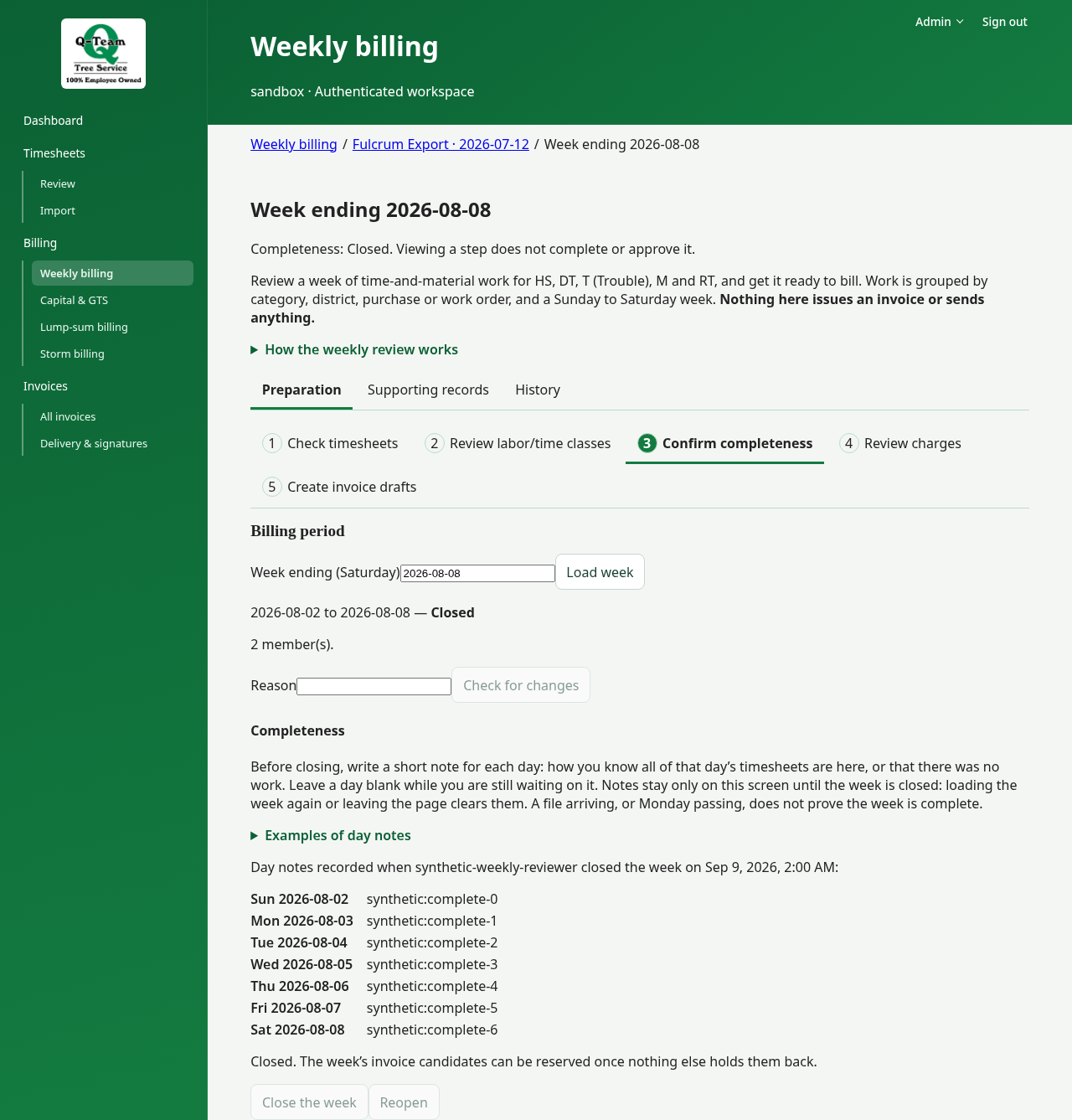
Under Confirm completeness, Billing period shows whether the period is complete and its open/closed state. Use Supporting records for member exclusions/inclusions and History for recorded changes. To close the week, a Billing reviewer writes a short note for each of the seven days: how they know that day's timesheets are all in, or that there was no work. Leave a day blank while still waiting on it. Notes are lost if you reload or leave before closing, and the line under them says what is still missing. Closing does not issue an invoice. Ask Ben or Bill before closing or reopening a shared practice period.
Late or changed work may need review. Read Reserved groups this week no longer shows if it appears: a prior draft may still exist even when its group is no longer shown.