Appearance
Fix a finding or value
A finding is an item to check. A mapping tells the app what a source value means. A correction records a reviewed change without editing the original.
Correct one value
- Open the finding and check which job and field it affects.
- Choose Correct. The form opens under that row.
- For a change, choose Override the proposed value and enter Corrected value. To add a comment only, choose Note only.
- Fill in Reason and Evidence reference: why the value should change and where the proof is.
- Choose Record correction. The form closes, and the row says whether the finding is still open. Review again if prompted.
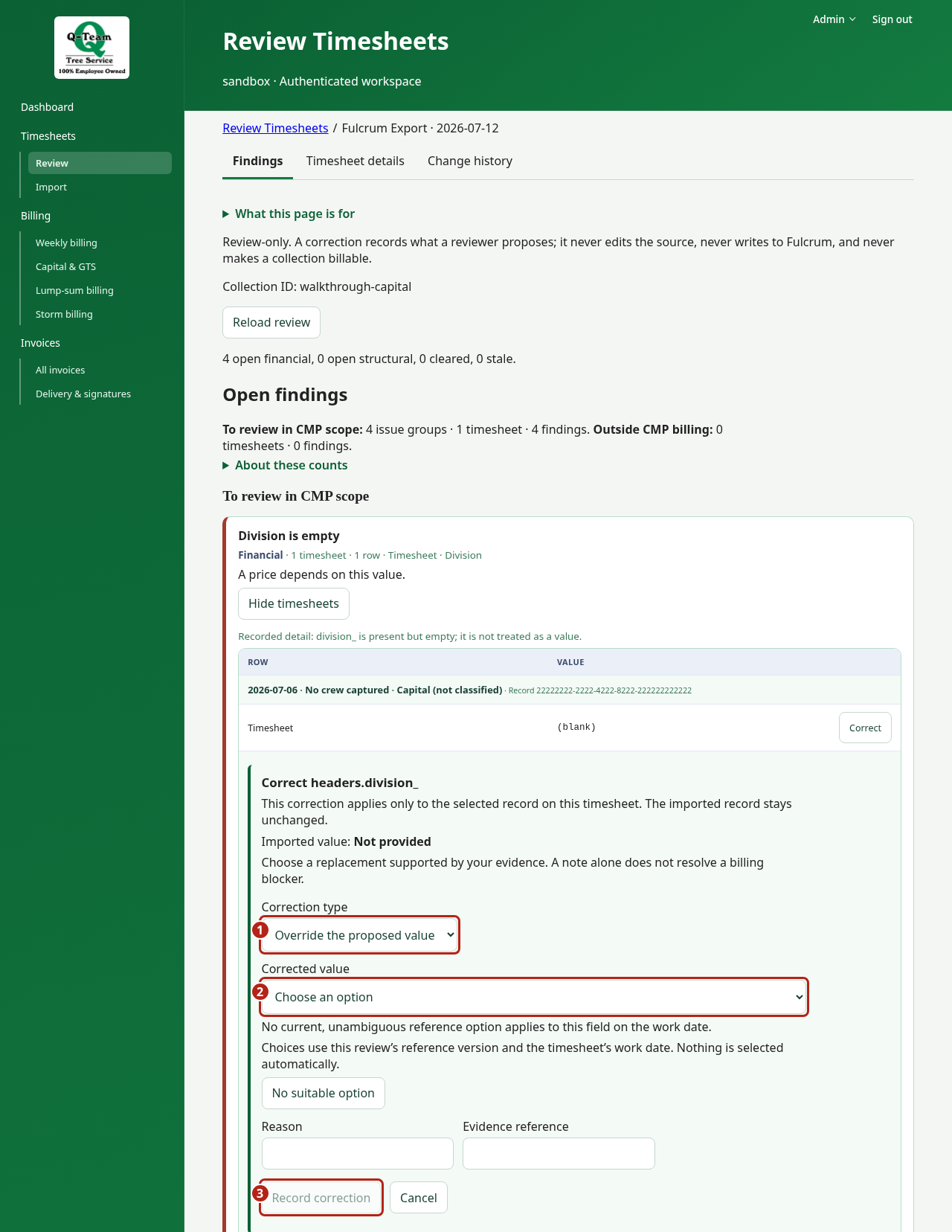
A note only adds a comment. It does not clear a billing hold. An override can clear a value finding when the value and proof meet the rules. Some holds need an approved rate or list instead.
The same problem on many jobs?
Check a few examples. If your account manages reference data, Make a reusable mapping may appear on an unknown-code group. It prepares a draft that changes nothing until it is approved in Reference data, and approving it makes earlier corrections stale. Otherwise ask Ben or Bill whether a shared mapping needs a fix. Correct still fixes one row at a time; a group of findings is not a bulk-correction tool.
Do not guess an unknown code or how to split hours between workers. When one entry lists several people, each is checked separately and Correct is not offered for one of them; adding that person to the worker reference clears it.
Add a missing person
On the one-timesheet page, Add a missing person records someone the import left out, with Why add this person and Evidence for adding. Choose Add this person. To remove an addition, choose Withdraw followed by the person's name. Billing cannot include an added person yet: that timesheet's billing is held until the addition is withdrawn. Ask Ben or Bill before adding anyone in practice. The app may refuse an addition, for example for Storm work or an invoiced timesheet; read its reason.
If the app says the review is stale
“Stale” means an input changed since the last review. Read the latest values, review again and prepare or calculate again as prompted. Earlier versions stay in the history.
If a save gets no answer, use the offered retry. Do not start another action until you know what happened to the first one.