Appearance
Reference data: directories and mappings
Admin → Reference data, if shown for your account. The pictures show a Configuration administrator account.
This page answers: “What does this value mean?” Rates answer: “What does it cost?”
What belongs where?
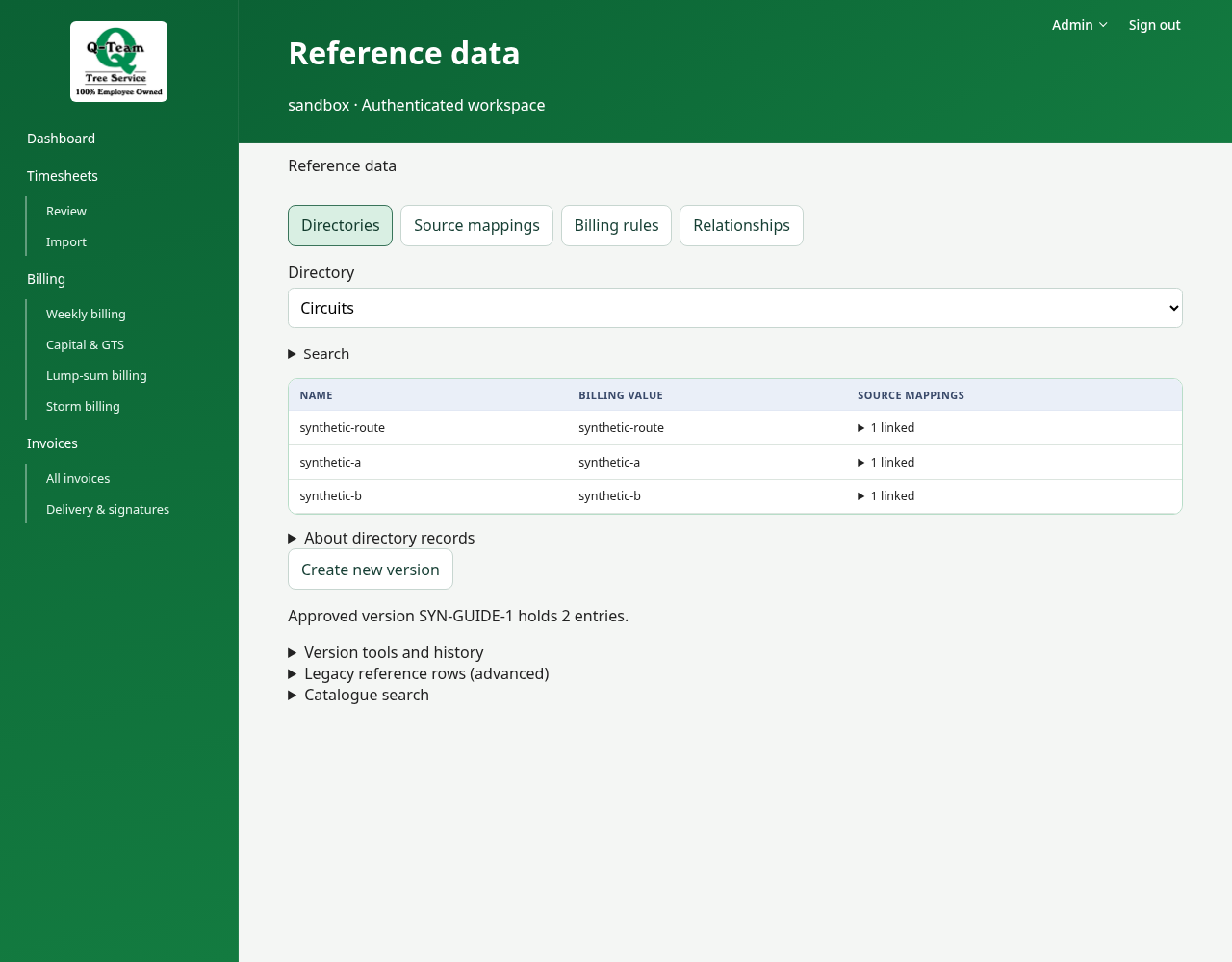
- Directories: recognized workers, equipment, circuits, districts and codes.
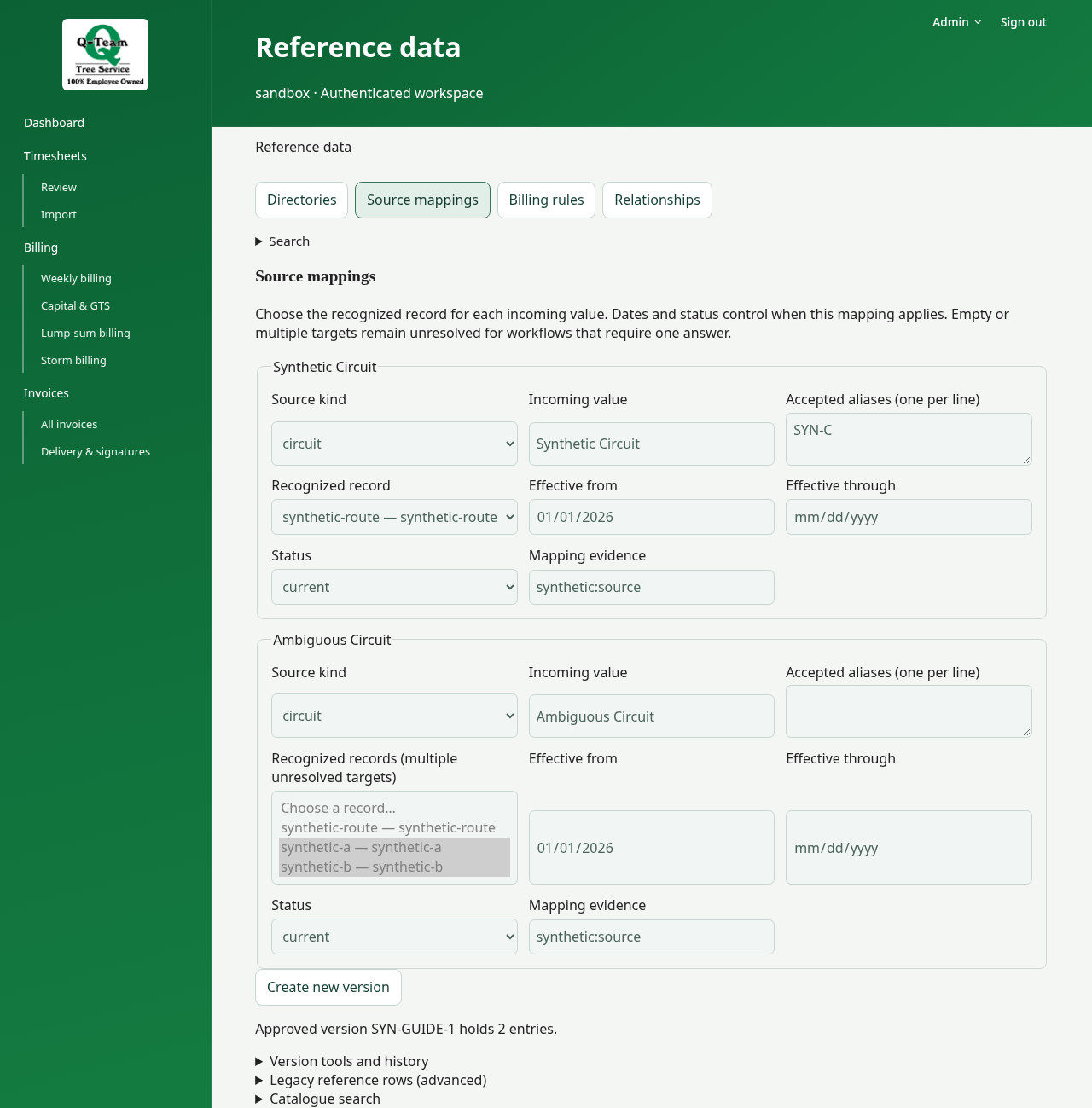
- Source mappings: incoming names and aliases linked to those records, with status and effective dates. Several source labels can share a record.
- Billing rules: category classification and department scope. Rates remain on their separate page.
- Relationships: equipment → type, circuit → district and crew membership. These describe the directory; they do not change invoice calculations or assign workers to a timesheet.
Add or correct a mapping
Choose Create new version to bring existing records forward without changing the approved version. In Directories, add or select the recognized record. In Source mappings, enter the source label and choose its target, aliases, dates and evidence. Use Relationships for links between records.
Saving fields in the form does not activate them. Validate and prepare the version, then submit it through its Approval view. Historical calculations retain their pinned reference versions. A shared record change affects all its linked mappings in the candidate; check its usage before changing the billing value.
Check a mapping
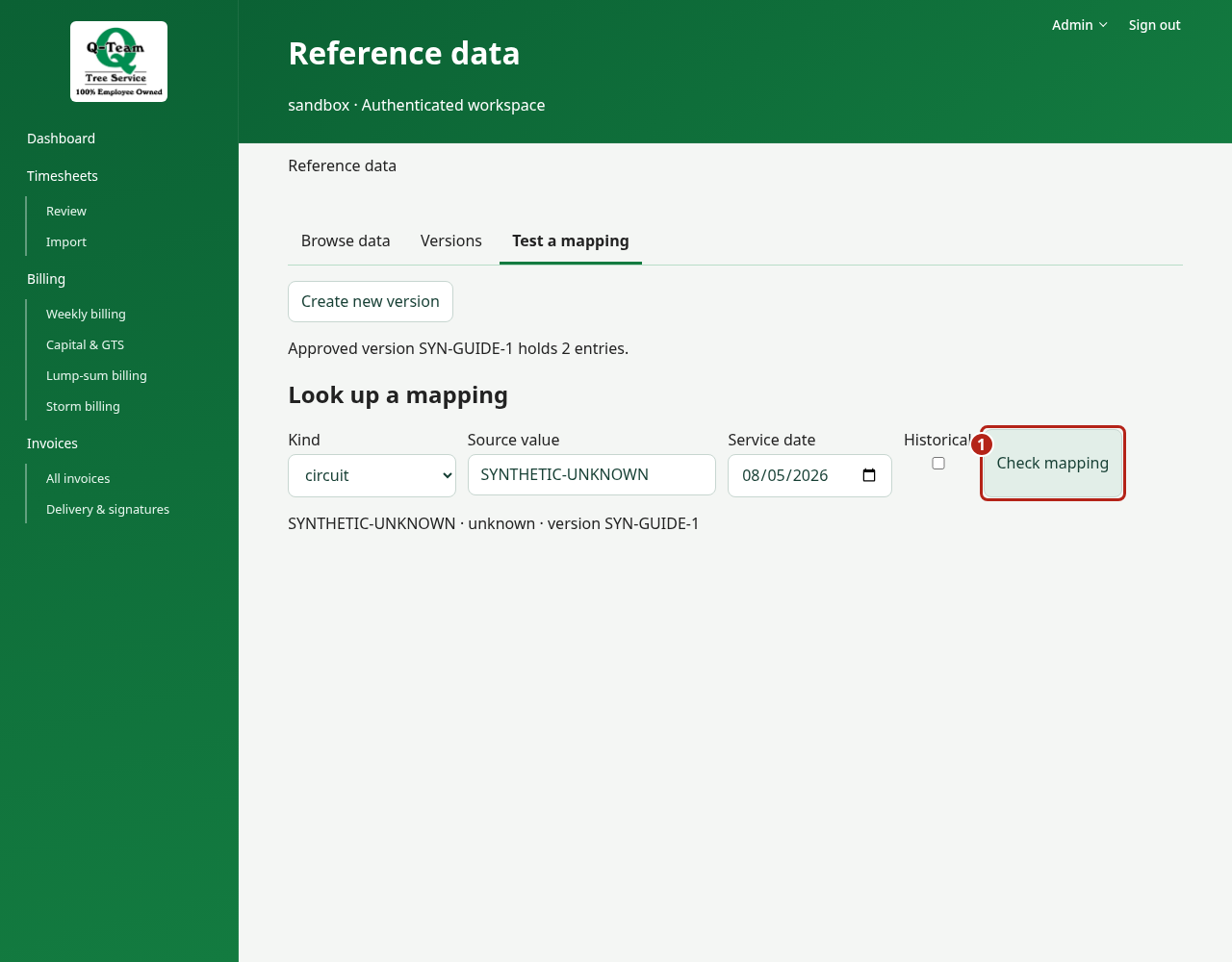
Expand Version tools and history, then choose Test a mapping, or open a retained version and choose its Test a mapping view. A mapping links a source value to the value used for billing.
Check the source text, billing value, approval and dates. Read its history if the value changed.
An unknown code is not always a misspelling. Do not choose the closest-looking match just to clear a finding.
Browse or prepare reference data
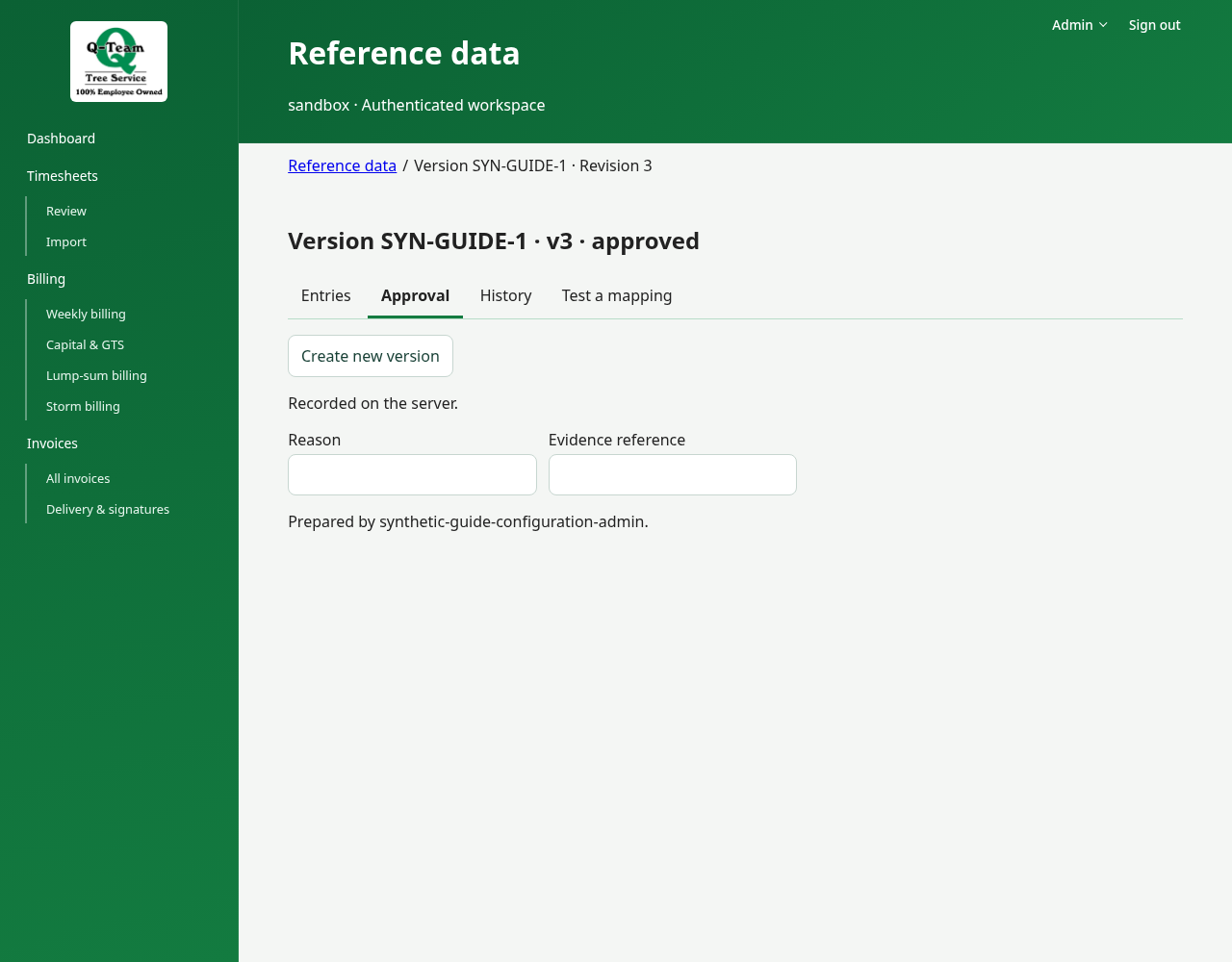
Browse data opens on the reference tabs, followed by the directory selector and compact rows. Search is collapsed until needed. Version tools and history holds refresh, candidate loading and version lookup. Versions lists retained versions; opening one shows Entries, Approval, History and Test a mapping. The breadcrumb returns to the main Reference data page.
Use Create new version to begin Enter changes → Validate → Prepare version. Enter the version name, changes and supporting reason/evidence; validation shows problems before the draft is stored. Prepare new version stores a draft, not an approval. Use the draft’s Approval view to submit or perform the review actions your account permits.
Switching views keeps entered work. Uncertain-save messages and Retry same operation remain visible outside the views; use that retry rather than preparing another version.
A repeated problem
If many jobs have the same wrong value, ask Ben or Bill whether the shared mapping needs a fix. That is different from correcting one value on one job.
A changed mapping may require fresh review and math. Earlier invoices keep the versions they used.
Correct one value · Look up a rate