Appearance
Check funding approval
Admin → Funding authorizations, if shown for your account. The pictures show a Financial controller account.
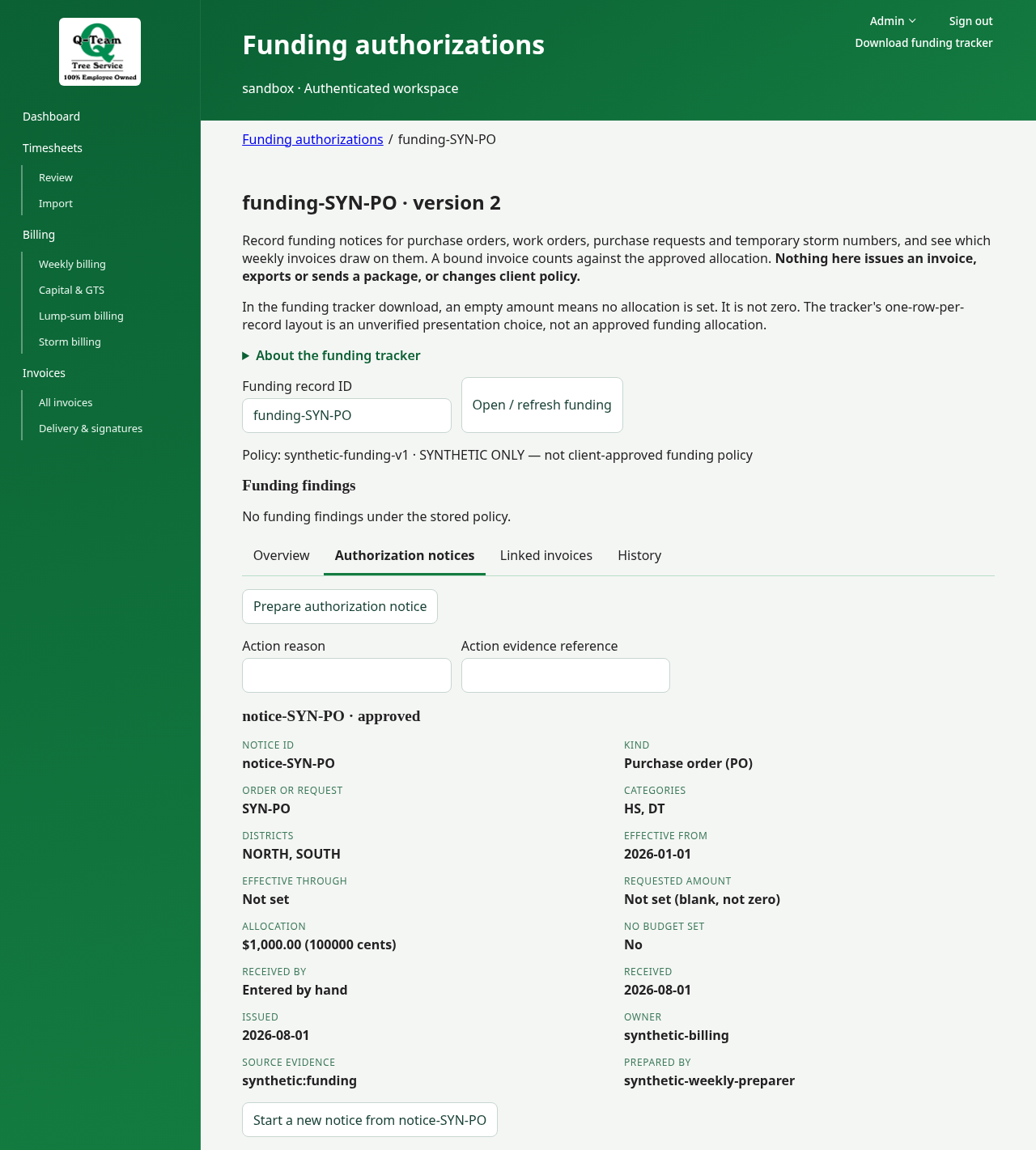
Open the record for the job. Use Overview, Authorization notices, Linked invoices and History to move between its views. Funding findings and retry messages remain visible across views.
Check the request, purchase order (PO) or work order (WO), its approval, amount and linked invoices.
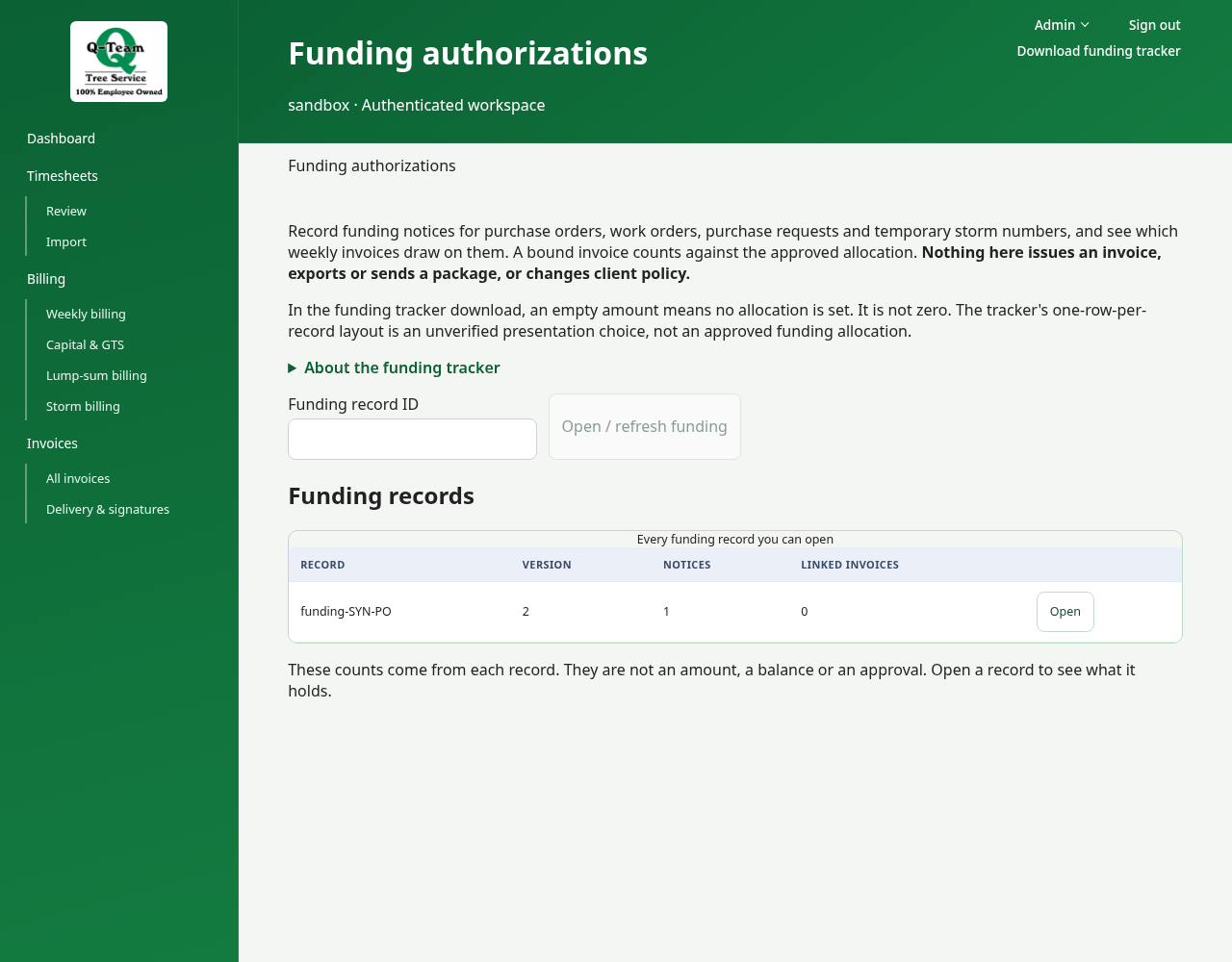
A request is not an approved PO. A storm number is not funding approval.
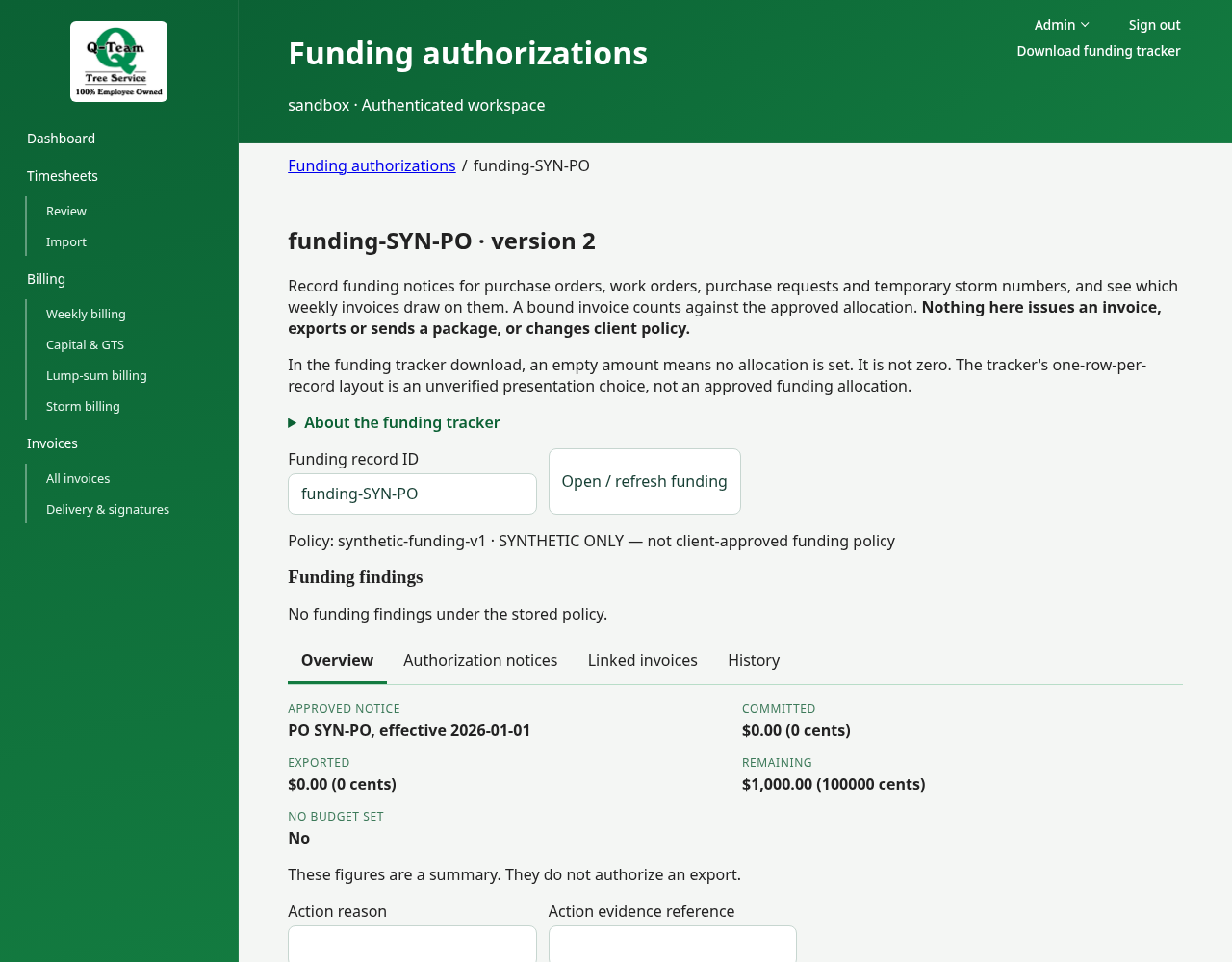
Why is the invoice held?
Look for one of these reasons:
- Approval is missing.
- The job or reference does not match.
- Not enough of the approved amount remains.
- The funding details changed after the draft was prepared.
Give Ben or Bill the reason and the correct reference. Do not raise a limit to get a practice bill through. Test limits are not the client's real PO limits.
Changing these records needs the right role and proof. For the first walkthrough, read them rather than edit them.
Prepare an authorization notice
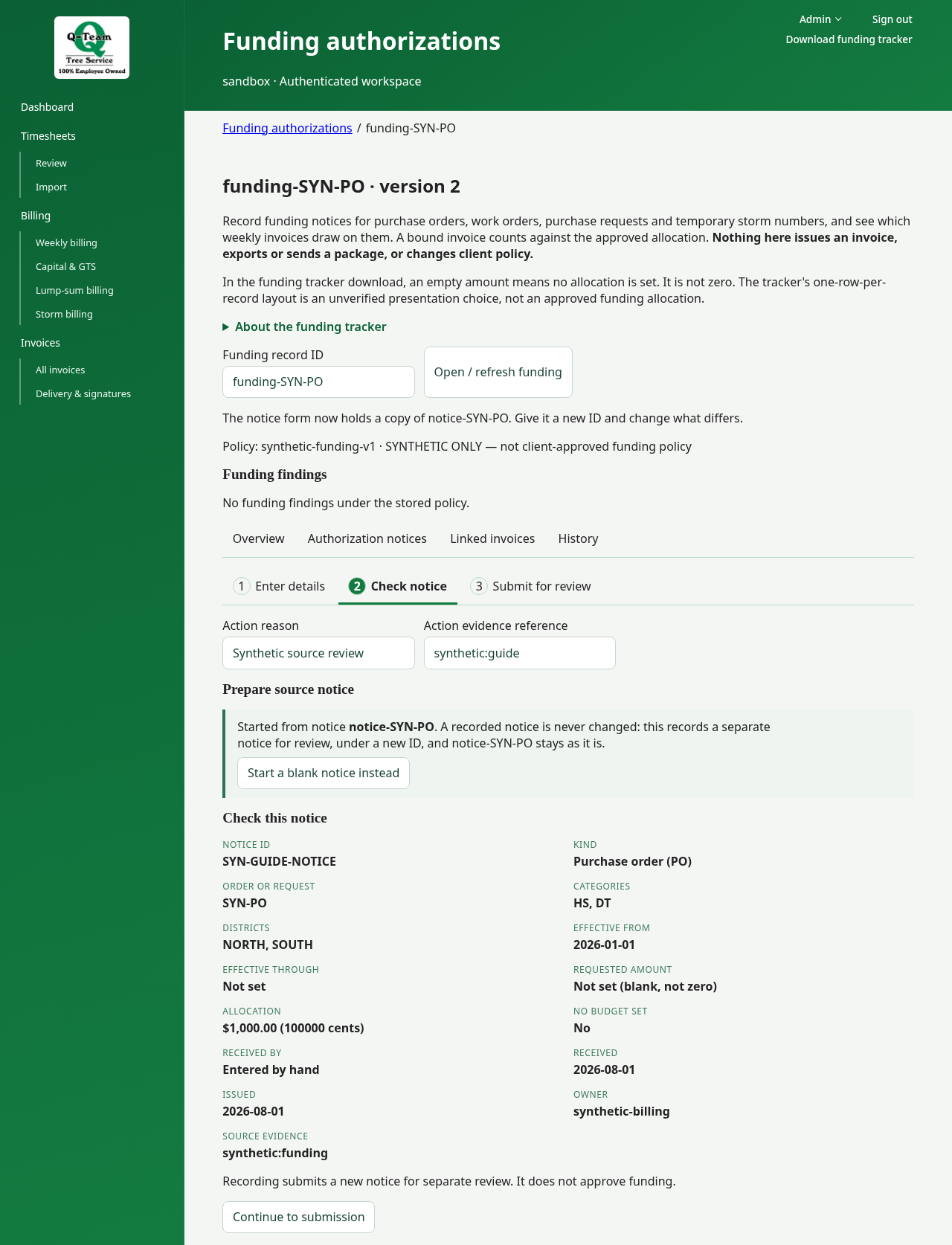
If your role permits it, open Authorization notices → Prepare authorization notice. Work through Enter details → Check notice → Submit for review. The check shows the values in plain language; recording creates a notice awaiting separate approval, not approved funding.
You can start from an existing notice to copy its fields into a new one. Give it a new ID; the stored notice stays unchanged. Switching views preserves work entered on this page. Use Linked invoices for the existing weekly-invoice association and History for recorded actions.