Appearance
Dashboard: find work needing attention
The Dashboard is the usual landing page after sign-in. A bookmark to a job, invoice or another page still opens that saved page. Choose Dashboard in the main menu to return here.
The queues show shared work your account can see. They are not personal assignments, and there is no claim button.
Choose a queue
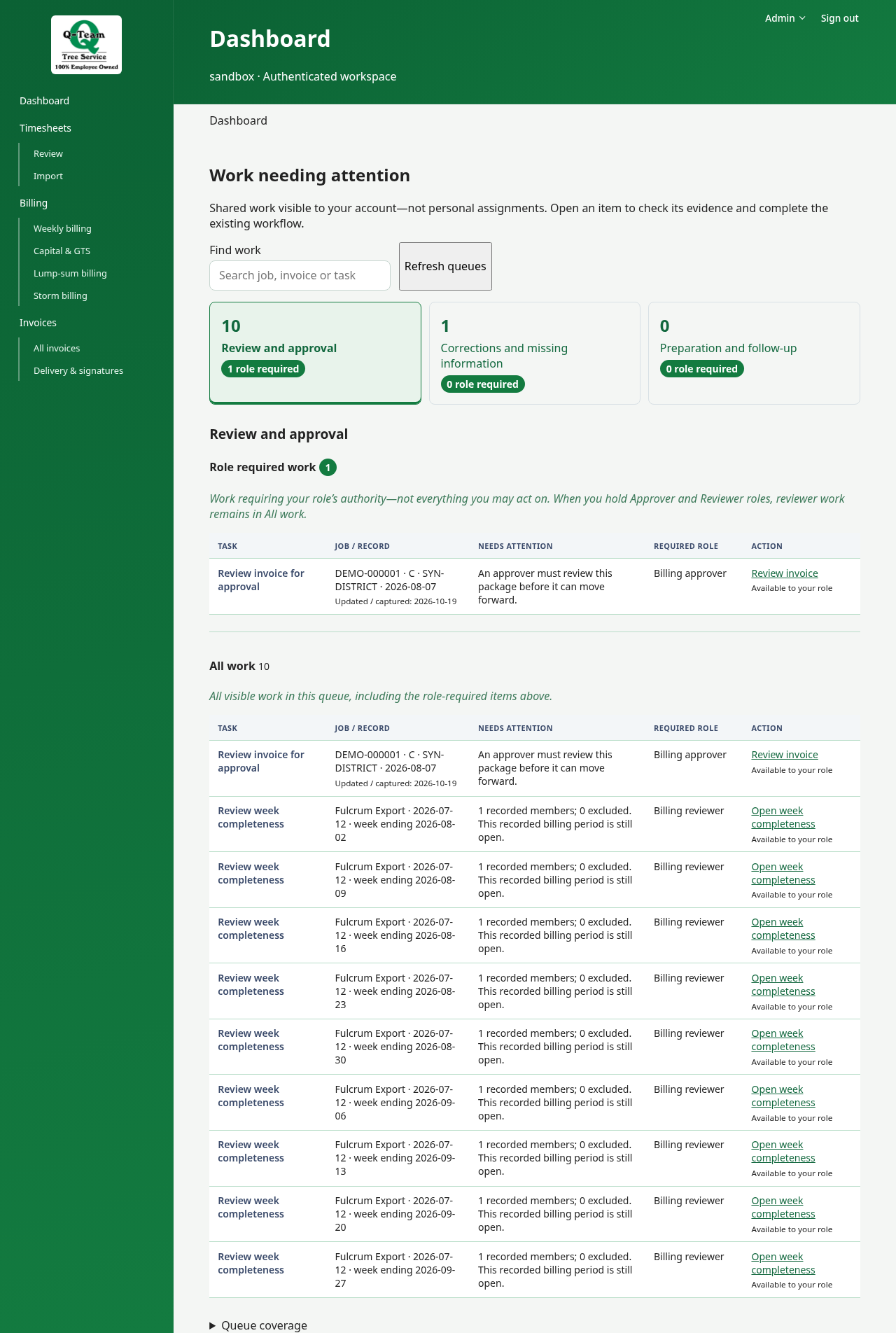
Select a count bubble to open that queue. The selected bubble is highlighted green. Only that queue's list appears below it. Your selection stays in the page address, so a bookmark, refresh or browser Back button can return to it.
- Review and approval: recorded work awaiting a review or decision, such as a pricing-method confirmation, invoice review or reference-data review.
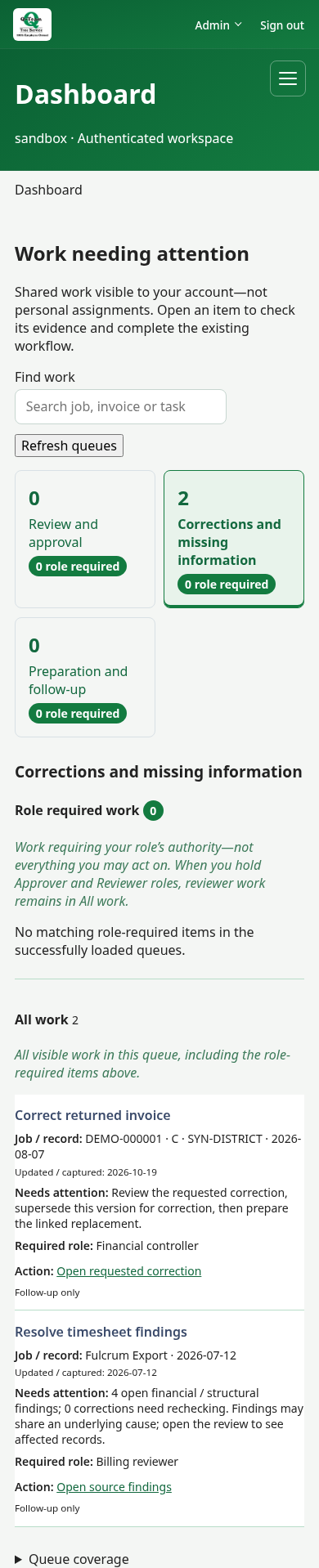
- Corrections and missing information: findings or changed evidence that need attention, such as timesheet corrections or a returned invoice.
- Preparation and follow-up: work to prepare or follow up, such as a draft or a package awaiting returned paperwork.
The large number is the total visible work in that queue. The green role required badge shows how many specifically require the authority highlighted for your account. These are workflow-item counts, not counts of distinct timesheets or invoice totals. One item may cover several findings; one record may need attention in more than one workflow.
Start with role-required work
Each tab has two groups:
- Role required work comes first. It shows work specifically requiring your highlighted role authority. Open the item and check its evidence. The record may still have a missing prerequisite or need another person's decision.
- All work shows every item visible to you in that queue, including the role-required items above. Use it to see work awaiting another role or an outside response. An item shown in both groups is the same task, not two tasks.
For example, if you hold both Billing reviewer and Billing approver, a queue with nine reviewer tasks and one approval shows 10 total and 1 role required. The approval appears at the top. You can still do the reviewer work from All work. No role selector is needed.
For this grouping, Approver takes priority over Reviewer, and Reviewer over Preparer when you hold more than one of those roles. Export, financial-control and configuration roles stay separate specialties; they do not replace billing approval authority. Each item names its required authority. Work that can be completed by alternative roles is shown as shared follow-up, not exclusive role-required work.
This is a display priority, not a new permission or an assignment. Holding one role does not grant another role’s actions. Record-specific checks still apply.
Open the next action
On desktop, each group is a compact table with Task, Job / record, Needs attention, Required role and Action columns. The record column includes its update or capture date when available. On phones, the same information appears in compact stacked rows with labels, without horizontal scrolling.
Available to your role means you may take the action, subject to the record’s checks. Follow-up only means the next step may need another role or an outside response; you can still open the record for context.
Read the task, record details and reason. Then choose its action, such as Open source findings, Review invoice, or Open pricing confirmation. The link opens the relevant record or workflow. Follow the checks on that screen; opening a link does not approve, save or send anything.
After you finish, return to Dashboard. Use Refresh queues to check the latest state. An item may remain if another step is still needed.
Search and refresh
Use Find work to search the visible task, job, invoice or reason text. Search applies across the tabs and updates both the total and role-required counts. Clear the search to see the full lists again.
While the queues load, the app waits before showing counts. If Some queues could not be loaded appears, the counts exclude those queues. That does not mean there is no work in them. Choose Refresh queues to retry. Queue coverage shows which sources loaded and which are unavailable.
No role-required items?
A zero badge can be correct even when All work contains items. You may be allowed to do the work, but it may not need your highlighted authority. Other items may require a role you do not hold. Read the action status, then ask the appropriate reviewer or administrator if help is needed.
Find another page · Fix a finding · When something stops you